Install with Docker
A Cofre Ink server of your own gives you accounts with email and password, the same data on every device that signs in, and shared spaces where you can invite other people. It is one container that serves the interface and the data on one port. This page goes from an empty machine to the first sign in, then covers updating, backups and what can go wrong.
If only you will use Cofre Ink, on one device, you need none of this: app.cofre.ink keeps the database in your browser, with no account. Where your data lives compares the two. Keep in mind that with a server, every device has to reach it to work.
Before you start
Section titled “Before you start”- Docker, with the
docker composecommand. The repository names no minimum version, and no minimum memory or disk. - Git, to download the code.
- Node, only to make the secret in step 3, since the container brings its own. Any random string of at least 32 characters will do instead.
- An internet connection for the first build. Building the image downloads pnpm and the packages Cofre Ink uses.
- Port 4321 free on the machine, or another port you choose with
COFRE_PORT.
Every command on this page is the repository’s own or was run while writing this guide, in PowerShell on Windows 11 with Docker Desktop. They read the same in a Linux or macOS terminal. The Windows Command Prompt (cmd.exe) does not understand ${PWD} in the backup commands: use PowerShell there.
The compose.yaml, part by part
Section titled “The compose.yaml, part by part”The repository carries this file at its root. You do not edit it: what you set goes in .env, and Compose fills the ${...} parts from there.
# Cofre on your own machine.##   1. cp .env.example .env#   2. fill COFRE_SECRET#   3. docker compose up -d## The data lives in the named volume below, so it survives an update of the image.# For PostgreSQL instead of SQLite, read the note above the database service further# down: there are four things to uncomment, and leaving one out stops the whole file.
# The project name comes from here and not from the folder, so the container and the# volume are called the same thing on every machine.name: cofre
services:  cofre:    build: .    restart: unless-stopped    ports:      - "${COFRE_PORT:-4321}:4321"    environment:      COFRE_PORT: 4321      COFRE_DATABASE: ${COFRE_DATABASE:-/data/cofre.db}      COFRE_SECRET: ${COFRE_SECRET:?set COFRE_SECRET in .env}      COFRE_WEB_ORIGIN: ${COFRE_WEB_ORIGIN:-http://localhost:4321}      COFRE_PUBLIC_URL: ${COFRE_PUBLIC_URL:-http://localhost:4321}      # The rest of what .env.example offers. Without these lines a person fills the      # file, brings the container up and finds the widget they asked for is not there,      # which is worse than not offering it: they think something is guarding the door.      COFRE_PROOF_BITS: ${COFRE_PROOF_BITS:-18}      COFRE_CLIENT_IP_HEADER: ${COFRE_CLIENT_IP_HEADER:-}      COFRE_TURNSTILE_SITE_KEY: ${COFRE_TURNSTILE_SITE_KEY:-}      COFRE_TURNSTILE_SECRET: ${COFRE_TURNSTILE_SECRET:-}      NODE_ENV: production    volumes:      - cofreData:/data    healthcheck:      test: ["CMD", "node", "-e", "fetch('http://localhost:4321/health').then(r => process.exit(r.ok ? 0 : 1))"]      interval: 30s      timeout: 5s      retries: 3    # Uncomment this with the database service below, and not on its own: Compose    # refuses the whole project when a service depends on one that is not there.    #    # Waiting for the container to exist is not enough, which is why this waits for it    # to be healthy. PostgreSQL starts, writes its own files, restarts itself once and    # only then opens the socket, so a server that connects the moment the container    # appears is refused and dies on the first boot.    # depends_on:    #   database:    #     condition: service_healthy
  # PostgreSQL instead of SQLite. Four things to uncomment, not one: this service, the  # depends_on above, the volume it writes to at the bottom of this file, and  # POSTGRES_PASSWORD in .env. Then point COFRE_DATABASE at it:  #   COFRE_DATABASE=postgres://cofre:${POSTGRES_PASSWORD}@database:5432/cofre  # The host is `database`, the name of the service, because that is what the address  # resolves to from inside this network. It is not localhost, which in there is the  # container asking itself.  # database:  #   image: postgres:17-alpine  #   restart: unless-stopped  #   environment:  #     POSTGRES_USER: cofre  #     POSTGRES_PASSWORD: ${POSTGRES_PASSWORD:?set POSTGRES_PASSWORD in .env}  #     POSTGRES_DB: cofre  #   volumes:  #     - cofrePostgres:/var/lib/postgresql/data  #   # What the depends_on above waits for. Asking the database itself, rather than  #   # watching a port, because the port is open for a moment during the start before  #   # it is ready to answer.  #   healthcheck:  #     test: ["CMD-SHELL", "pg_isready -U cofre -d cofre"]  #     interval: 5s  #     timeout: 5s  #     retries: 12
volumes:  cofreData:  # The other half of the database service above. Compose refuses the whole project when  # a service mounts a volume nothing declares, so uncommenting one without the other  # brings nothing up at all.  # cofrePostgres:
name: cofrefixes the project name, whatever the folder is called. The container and the volume carry it, which is why the volume is calledcofre_cofreDatain the backup commands below.build: .builds the image on your machine from theDockerfilenext to this file. It builds the interface first, then an image onnode:24-alpinethat runs the server as the usernode, not as root.restart: unless-stoppedstarts the container again after a crash or a restart of Docker, unless you stopped it yourself.portspublishes the server on the port of your machine named byCOFRE_PORT, 4321 when nothing sets it. Inside the container the server always listens on 4321.environmenthands the settings to the server.${NAME:-value}takes the lineNAME=of.envand falls back to the value after:-only when.envleaves it out or empty, so a line in.envalways wins over the default written here.${COFRE_SECRET:?...}has no default: Compose will not start the container without a secret.NODE_ENVis fixed atproduction.volumesmounts the named volumecofreDataat/datainside the container. What is written under/datasurvives when the container is replaced. What is written anywhere else does not.healthcheckasks the server at/healthevery 30 seconds.docker compose psshows the answer as(healthy).- The commented
depends_on,databaseservice andcofrePostgresvolume are the PostgreSQL path. They are uncommented together, with a line in.env, as the comments in the file say. See PostgreSQL.
Install, step by step
Section titled “Install, step by step”1. Get the code
Section titled “1. Get the code”git clone https://github.com/AndreiLud/app-cofre-inkcd app-cofre-inkEvery command from here on runs inside this folder.
2. Create the .env file
Section titled “2. Create the .env file”cp .env.example .env.env.example lists every setting with a comment on each. cp works in PowerShell too. It replaces an existing .env without asking, so run it only once: on a server already in use, it would throw away your secret and the addresses of step 4.
3. Make a secret
Section titled “3. Make a secret”node -e "console.log(require('node:crypto').randomBytes(32).toString('hex'))"It prints 64 characters. Open .env in a text editor and paste them right after COFRE_SECRET=, on the same line. Without Node, any random string of at least 32 characters will do. A shorter one stops the server when it starts.
The secret signs the sessions of whoever is signed in. It is not your password. Keep it out of sight, and keep it: changing it signs everybody out.
4. Leave the rest commented, until the address changes
Section titled “4. Leave the rest commented, until the address changes”COFRE_SECRET is the only line that has to be filled for the container. In the words of .env.example, “everything left commented falls through to a default that already suits it.” A commented line still matters, because whatever .env sets wins over compose.yaml, so leave these alone unless you mean them:
# COFRE_DATABASE=stays commented. Compose then uses the default ofcompose.yaml,/data/cofre.db, in the folder where the volume is mounted, so the database survives updates. A path written there that is not under/dataputs the database inside the container, where the next update deletes it. Fill it in only for PostgreSQL.# COFRE_WEB_ORIGIN=and# COFRE_PUBLIC_URL=stay commented while Cofre Ink is used only on the machine running Docker. Both are thenhttp://localhost:4321, because the container serves its own interface and the two are the same address.COFRE_WEB_ORIGINis where the interface is opened, and every invitation link is built with it.COFRE_PUBLIC_URLis where the server answers, seen from outside.
The moment the server is reached as anything other than localhost (from another device, by a domain, over https://), remove the # from both address lines and put the real address in both:
COFRE_WEB_ORIGIN=https://cofre.yourhouse.comCOFRE_PUBLIC_URL=https://cofre.yourhouse.comBoth addresses are the one people type in the browser to open Cofre Ink, with http:// or https:// at the start and no slash at the end. http://localhost:4321 works only on the machine running Docker. If other devices will use the server, a phone at home for example, put in both lines the address those devices use, and open Cofre Ink by that same address on every device, this machine included: the server accepts a sign in only from a page opened at one of these two addresses. For an address on the internet, read HTTPS and a reverse proxy first.
5. Start it
Section titled “5. Start it”docker compose up -dThe first time, Compose builds the image before starting it. That needs the internet and takes a while: about a minute on the machine used for this guide, which already had the Node base image. Later starts take seconds.
6. Check that it runs
Section titled “6. Check that it runs”docker compose psThe status reads (health: starting) for about 30 seconds, then (healthy).
docker compose logs --tail 50Among the lines, look for these two:
Cofre Ink is listening on http://localhost:4321storing data in /data/cofre.dbThe first always says localhost, whatever address you set. The second has to name a file under /data. If it says storing data in ./data/cofre.db, .env still holds the database line of an older copy, as the caution in step 4 describes: put a # in front of it, run docker compose up -d again, and check once more before anybody creates an account.
The first visit
Section titled “The first visit”Open http://localhost:4321 in a browser on the same machine, or the address you set in step 4.
The interface opens in Portuguese on a device whose clock is set to a time zone of Brazil, and in English anywhere else. The PT EN button at the top, named Language, switches it, and that browser keeps the choice. The labels below are the English ones.
- The first screen asks How do you want to use Cofre Ink?. The container serves the same interface as app.cofre.ink, and it does not know by itself that it came from your server, so you tell it.
- Under Sync between my devices, press See both ways.
- A server of mine is already chosen, and Address of the server comes filled with
http://localhost:4321. On the machine running Docker, keep it. Anywhere else, type the address from step 4 withhttp://at the start: an address typed withouthttp://orhttps://is read ashttps://, which this server does not answer. - Press Connect.
- The screen says Create your access, with a box that says This server has nobody on it yet. Fill What you are called, Email and Password, which asks for Ten characters at least.
- Press Create the account and sign in. It takes a few seconds, because the browser first solves a small puzzle that makes guessing passwords in bulk slow.
Screenshot pending
A new server's sign in screen, Create your access, before the account is created.
src/assets/shots/en/signInFirst.light.pngThe Overview of your personal space, Personal, opens empty. If Categories, in Settings, has none, press Use the starting set there. First steps goes on from here.
What to know about the accounts:
- There is no default password and none written anywhere. The one you chose is the only one.
- There is no password reset and no way to change a password in the interface, and the server sends no email. Keep the password somewhere safe.
- Signing up stays open to anybody who reaches the address. A new account starts empty and sees nothing of yours. The first account has no special power over the server: roles exist inside each space.
- From now on the sign in screen of this server opens on Sign in. Somebody new presses I do not have an account yet.
- The choice of server is kept in each browser. Every other device goes through steps 1 to 4 above with the same address.
Invite someone
Section titled “Invite someone”Invitations need a shared space, because the personal space takes no members.
- Open the space menu (the button with the name of the space, at the top), choose Manage spaces, then New space. Give it a name and press Save.
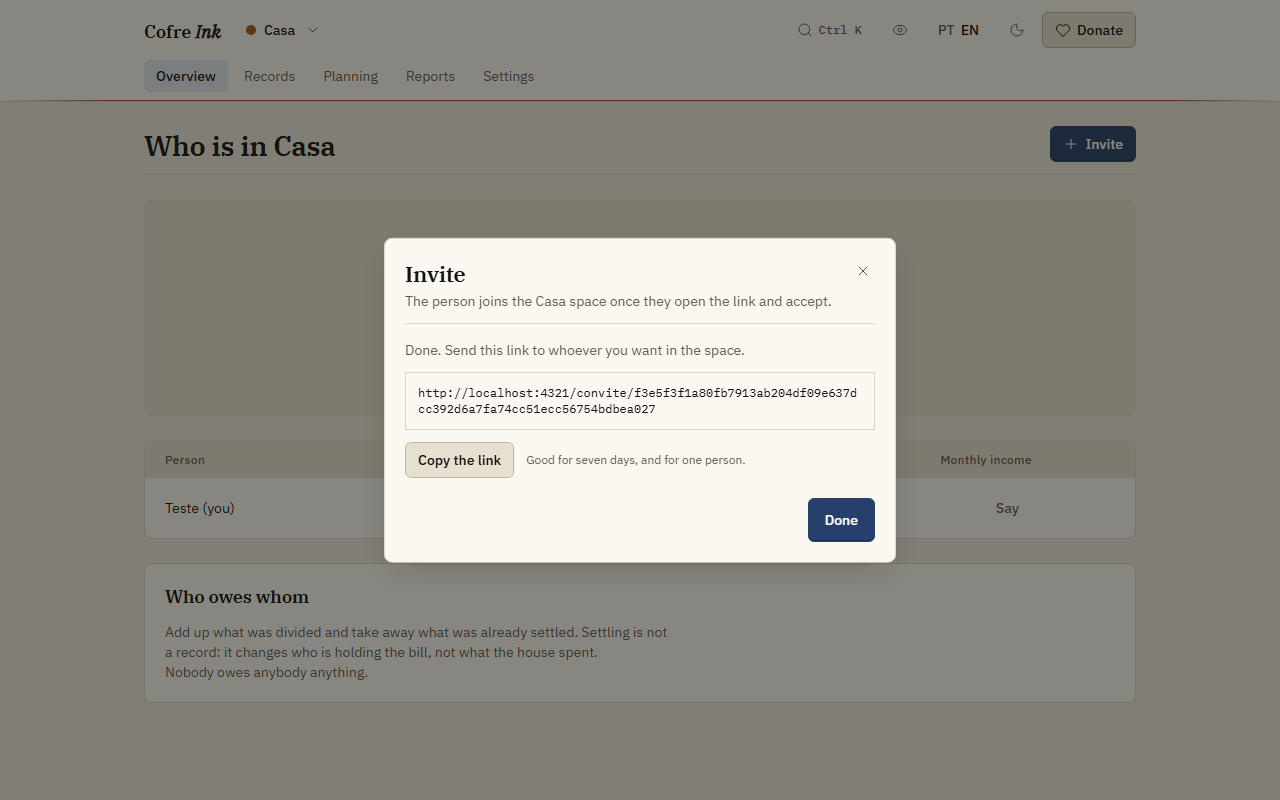
- With that space open, choose Members in the same menu and press Invite.
- Choose a Role, press Make a link, then Copy the link.
The link starts with the address in COFRE_WEB_ORIGIN and is Good for seven days, and for one person. The other person opens it, connects to the same server as in The first visit, creates an account and joins. Members and invitations explains the roles and the rest.
 (opens the picture at full size)
HTTPS and a reverse proxy
Section titled “HTTPS and a reverse proxy”The server speaks plain HTTP on port 4321 and has no certificate of its own. On one machine, or on a home network you trust, that is enough. To reach it from the internet you need a reverse proxy in front of it, with a real certificate. The repository ships no proxy configuration, so use the one you know. Then, in .env:
- Remove the
#in front ofCOFRE_PUBLIC_URLandCOFRE_WEB_ORIGINand set both to the public address, starting withhttps://. - Remove the
#in front ofCOFRE_CLIENT_IP_HEADERand set it to the header your proxy fills with the address of the caller, usuallyx-forwarded-for: the limit on sign in attempts reads who is calling from it. Leave it empty when nothing sits in front. - Run
docker compose up -dagain, so the container starts with the new values.
With https:// in COFRE_PUBLIC_URL, the browser keeps the session only over https, so the proxy has to answer with a valid certificate or nobody stays signed in.
The interface at app.cofre.ink with your server. You can also connect the interface at app.cofre.ink to your server, in place of the one your server serves. Then COFRE_WEB_ORIGIN must be https://app.cofre.ink and COFRE_PUBLIC_URL the address of your server, which is the one case where the two differ, and your server must answer over https with a real certificate, or nobody stays signed in: to the browser they are two different sites. The project’s automated tests do not cover this combination. Opening the address of your own server avoids all of it.
PostgreSQL
Section titled “PostgreSQL”This page sets up SQLite, one file in the volume, which is the default. For PostgreSQL, compose.yaml carries a database service on postgres:17-alpine, and four things are uncommented together. Leaving one out stops the whole file, because Compose refuses a service that mounts a volume, or depends on a service, that nothing declares.
- The
databaseservice incompose.yaml, with itshealthcheck. - The
depends_onof thecofreservice, further up the same file. - The
cofrePostgresvolume, at the bottom of the file. It sits apart from the service, so it is the easy one to miss. POSTGRES_PASSWORDin.env, the password the database is created with.
The second one keeps the server from reaching for the database too early: PostgreSQL restarts itself once while it starts, so Compose waits for its healthcheck to answer before starting the server.
Then point the server at it, in the same .env:
POSTGRES_PASSWORD=something longCOFRE_DATABASE=postgres://cofre:${POSTGRES_PASSWORD}@database:5432/cofreCompose expands ${POSTGRES_PASSWORD}, so the password is written once. The host is database, the name of the service, and not localhost, which inside the container is the container itself. Run docker compose up -d, and the log says storing data in postgres://cofre:***@database:5432/cofre.
This path was run while writing this guide: docker compose up -d waited for the database to be healthy, then started the server, which connected at the first try.
It is still the less proven path: the project’s automated tests run PostgreSQL only on PGlite, inside the test process. The volume copy below copies cofreData, which holds nothing here, so back PostgreSQL up with pg_dump, or with the copy from the interface, which works the same with either database.
Updating
Section titled “Updating”- Take a backup first, as described below. The repository describes no way back to an older version, so that copy is your way back.
- Read the changelog: it says what changed in each version, and what to do about it if you run a server.
- In the folder of the clone, run:
git pulldocker compose up -d --buildgit pull brings the new code and --build rebuilds the image from it. When the image changed, Compose replaces the container. When the database needs a change of shape, the server applies it by itself as it starts. Your records stay in the volume as long as the database is under /data, which it is while the COFRE_DATABASE line stays commented: afterwards, docker compose logs --tail 50 should again say storing data in /data/cofre.db. git pull leaves .env as it was, so if yours came from an older copy of the repository, read the caution in step 4 before updating.
Backup and restore
Section titled “Backup and restore”There are two kinds of copy, and they hold different things:
- A copy of the volume, made from the command line, holds the whole server: every account, space, member and invitation.
- A copy from the interface holds the spaces of the person signed in, in a file any Cofre Ink can bring back. It carries no accounts, and not who is in each space.
A copy of the volume
Section titled “A copy of the volume”Run these in the folder of the clone. The server stops for a few seconds, and the file cofre.tar.gz lands in that folder.
docker compose stopdocker run --rm -v cofre_cofreData:/data -v ${PWD}:/out alpine tar czf /out/cofre.tar.gz /datadocker compose startThe first time, Docker downloads the alpine image. The line tar: removing leading '/' from member names is expected. The file holds data/cofre.db, sometimes with cofre.db-wal and cofre.db-shm beside it, which is harmless. It has no password and holds every account and record, so keep it where only you can reach it.
Restore a copy of the volume
Section titled “Restore a copy of the volume”This replaces everything in the volume with what is in the file: whatever was written after the copy is lost. Put cofre.tar.gz in the folder of the clone and run:
docker compose stopdocker run --rm -v cofre_cofreData:/data -v ${PWD}:/out alpine sh -c "find /data -mindepth 1 -delete && tar xzf /out/cofre.tar.gz -C /"docker compose startThe second command empties the volume before unpacking, so no file left from the current database mixes with the restored one. On a new machine, follow the install up to step 6 first, so that Compose creates the volume, then run the three commands.
A copy from the interface
Section titled “A copy from the interface”In Settings, Data, Save a copy writes a file with everything in the open space when you press Save, and Bring it back, with Choose a file, joins such a file with what is already there. With more than one space, Backup of every space, under Take the data to another program, saves in one file every space where you are Owner or Administrator. These copies work with SQLite and with PostgreSQL alike. Backup and restore has the details.
Every variable
Section titled “Every variable”The server reads these and nothing else. Compose passes them from .env, and a line in .env replaces the value shown after “Under Compose”.
COFRE_SECRETrequiredUnder Compose: none, and Compose will not start without it
COFRE_DATABASEoptionalUnder Compose: /data/cofre.db
postgres means PostgreSQL. .env.example leaves it commented. Keep a SQLite file under /data, so it lands in the volume.COFRE_WEB_ORIGINoptionalUnder Compose: http://localhost:4321
.env.example leaves it commented, like the next one: set both as soon as the server is reached as anything other than localhost.COFRE_PUBLIC_URLoptionalUnder Compose: http://localhost:4321
https://, the session is kept only over https.COFRE_PORToptionalUnder Compose: 4321
COFRE_CLIENT_IP_HEADERoptionalUnder Compose: empty
x-forwarded-for. Only with a proxy in front.COFRE_PROOF_BITSoptionalUnder Compose: 18
COFRE_TURNSTILE_SITE_KEYoptionalUnder Compose: empty
COFRE_TURNSTILE_SECREToptionalUnder Compose: empty
NODE_ENVfixedUnder Compose: production, written in compose.yaml
COFRE_STATIC_DIRfixedUnder Compose: /app/apps/server/public, set by the image
A few of them behave differently under Compose:
NODE_ENVandCOFRE_STATIC_DIRdo nothing when written in.env.compose.yamlfixes the first, and the second comes from the image and is not passed on.COFRE_PORTonly moves the port on your machine. If you change it, put the new port in the two addresses as well.- Turnstile stays off unless both of its lines are filled, and the server refuses to start with only one. When it is on, Cloudflare learns the address of everybody who opens your sign in page, and a sign in is refused whenever Cloudflare does not answer. The project has tested it only against a stand in, never against Cloudflare itself.
POSTGRES_PASSWORDis read by the PostgreSQL service and by theCOFRE_DATABASEline that uses it, not by the server itself.
Common problems
Section titled “Common problems”To see what the server said, run docker compose logs --tail 50 in the folder of the clone.
Compose says set COFRE_SECRET in .env
Section titled “Compose says set COFRE_SECRET in .env”The line COFRE_SECRET= in .env is empty. Make a secret as in step 3, paste it there and run docker compose up -d again.
the configuration is not complete
Section titled “the configuration is not complete”The container stops as it starts, and the log says this, then where the values go (with Docker, in .env), then which setting and why. The most common is COFRE_SECRET shorter than 32 characters. Correct the line in .env and run docker compose up -d.
COFRE_TURNSTILE_SECRET is set without COFRE_TURNSTILE_SITE_KEY
Section titled “COFRE_TURNSTILE_SECRET is set without COFRE_TURNSTILE_SITE_KEY”Or the other way round. The two Turnstile lines go together: fill both, or empty both.
The first build stops while downloading
Section titled “The first build stops while downloading”The build downloads pnpm and packages from the internet, and it stops, with messages such as connect ETIMEDOUT, when it cannot reach them. Check the connection and run docker compose up -d again.
Cannot find package '@cofre/...'
Section titled “Cannot find package '@cofre/...'”The container starts and dies because the image is incomplete. Rebuild it from scratch, then start it:
docker compose build --no-cachedocker compose up -dEverything is gone after an update
Section titled “Everything is gone after an update”This happens with a .env made from an older copy of the repository. If the log said storing data in ./data/cofre.db, .env still held the line COFRE_DATABASE=./data/cofre.db, and the database lived inside the container that the update replaced. What was written that way cannot be brought back from the server. Put a # in front of the line, as the caution in step 4 says, and run docker compose up -d. From then on the data lives in the volume. If you saved copies from the interface, create your account again and bring them back with Bring it back.
If you notice the line before any update, save a copy of each space from the interface first, as Backup and restore explains, and run neither docker compose down nor docker compose up -d --build before that: recreating the container is what removes the file. Then comment out the line, run docker compose up -d, create the account again and bring the copies back.
Invitation links point at localhost:5174
Section titled “Invitation links point at localhost:5174”.env came from an older copy of the repository and still holds COFRE_WEB_ORIGIN=http://localhost:5174. Put a # in front of the line on a single machine, or set both addresses to the real one as in step 4, then run docker compose up -d and make a new link.
I could not reach an address that starts with https://
Section titled “I could not reach an address that starts with https://”The line under the title of the sign in screen, On the server, shows the address this browser is using. An address typed without http:// was read as https://, which this server does not answer, and sending the form says I could not reach with that address. The same message appears when the server is off, so check docker compose ps too.
This browser remembers the address it was given. To be asked again, clear the data the browser keeps for the page, in its site settings, then open the page and type the address with http://. At the address of your server that data holds this choice and preferences such as the language and the theme, unless you also used In this browser only there, whose database would go with it.
The email or the password does not match
Section titled “The email or the password does not match”The sign in screen shows this for a wrong password and for every other refusal: too many attempts, a page opened at an address the server does not trust, or Turnstile. When creating an account, the same goes for I could not create the account. That email may already be taken.
- Wait a minute and try again. The server allows five sign in attempts a minute and five new accounts an hour. With nothing in front and no
COFRE_CLIENT_IP_HEADER, it cannot tell callers apart and counts everybody together, which is also why the log shows a warning that starts withRate limiting could not determine a client IP, once after each start. - Check that the address in the browser is exactly the one in
COFRE_WEB_ORIGINorCOFRE_PUBLIC_URL.
Nobody stays signed in
Section titled “Nobody stays signed in”Signing in works, and the next screen asks again.
- The interface and the server are on different sites, as with app.cofre.ink and a server of yours. Check that
COFRE_WEB_ORIGINis the address the interface really comes from, thatCOFRE_PUBLIC_URLstarts withhttps://, and that the certificate is real, not self signed. Serving the interface from your own container avoids this. COFRE_SECRETchanged, which signs everybody out. Sign in again.
Still stuck
Section titled “Still stuck”The repository’s own deploy guide and troubleshooting guide, written alongside the code, go into more cases than this page. Whoever you ask for help, never send your .env: it holds the secret.
Related pages: Where your data lives, Members and invitations, Changing where the data lives, Backup and restore.