Where your data lives
The first thing Cofre Ink asks is where your money data should live. The answer decides whether you need an account, whether the app works with no internet and whether other people can join you, so it is worth knowing the three answers before you write anything down.
At a glance
Section titled “At a glance”| In this browser only | A server of your own | A database in the cloud | |
|---|---|---|---|
| Account and password | none | email and password, on your server | none in Cofre Ink; the database service may ask for one |
| Works with no internet | yes | no | yes, and the copy waits until you sync |
| Invite other people | no | yes | no |
| Where the data is | this browser | your server | this browser, plus a copy in your database |
| What you run | nothing | a Docker container | nothing |
In this browser only
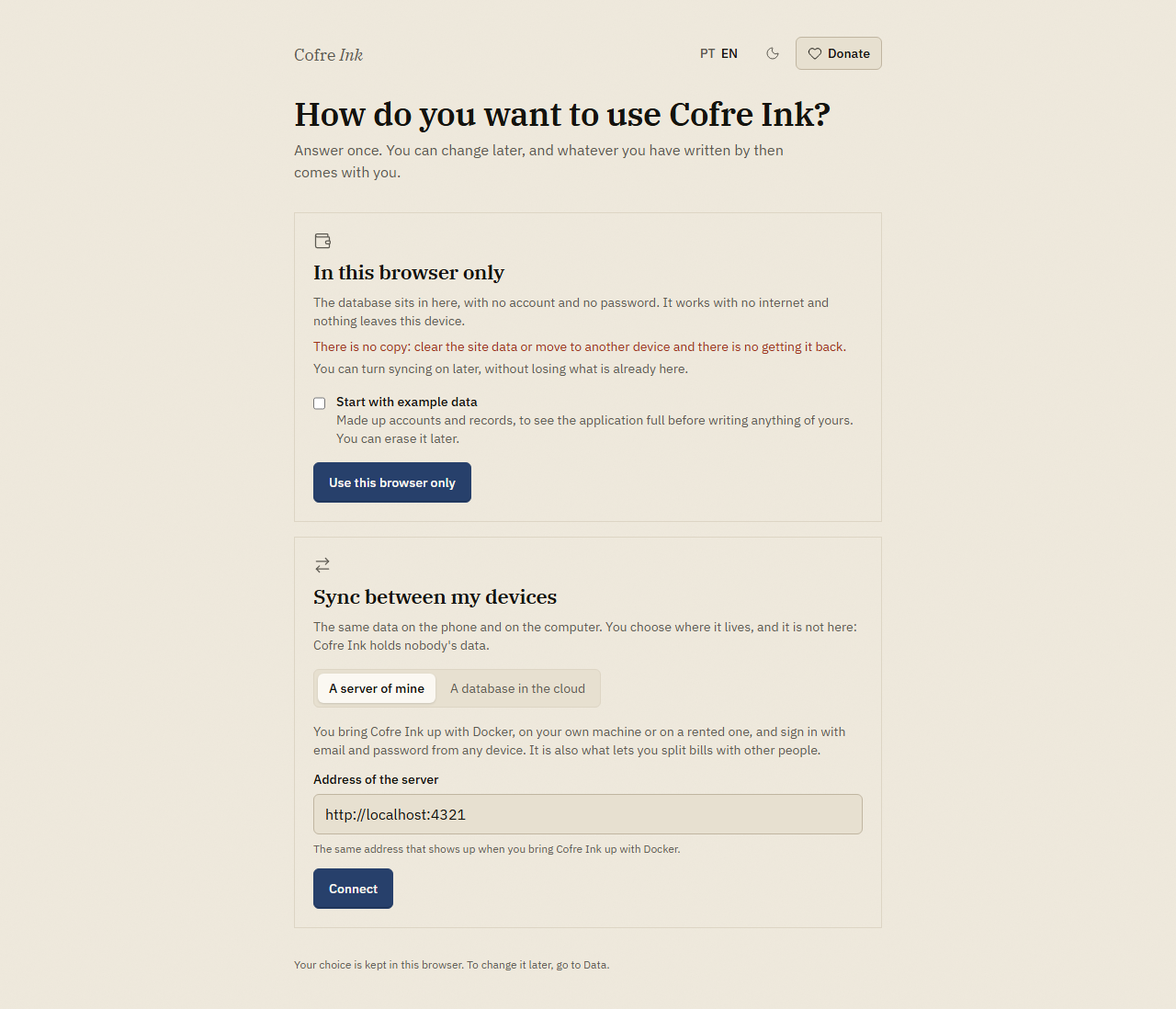
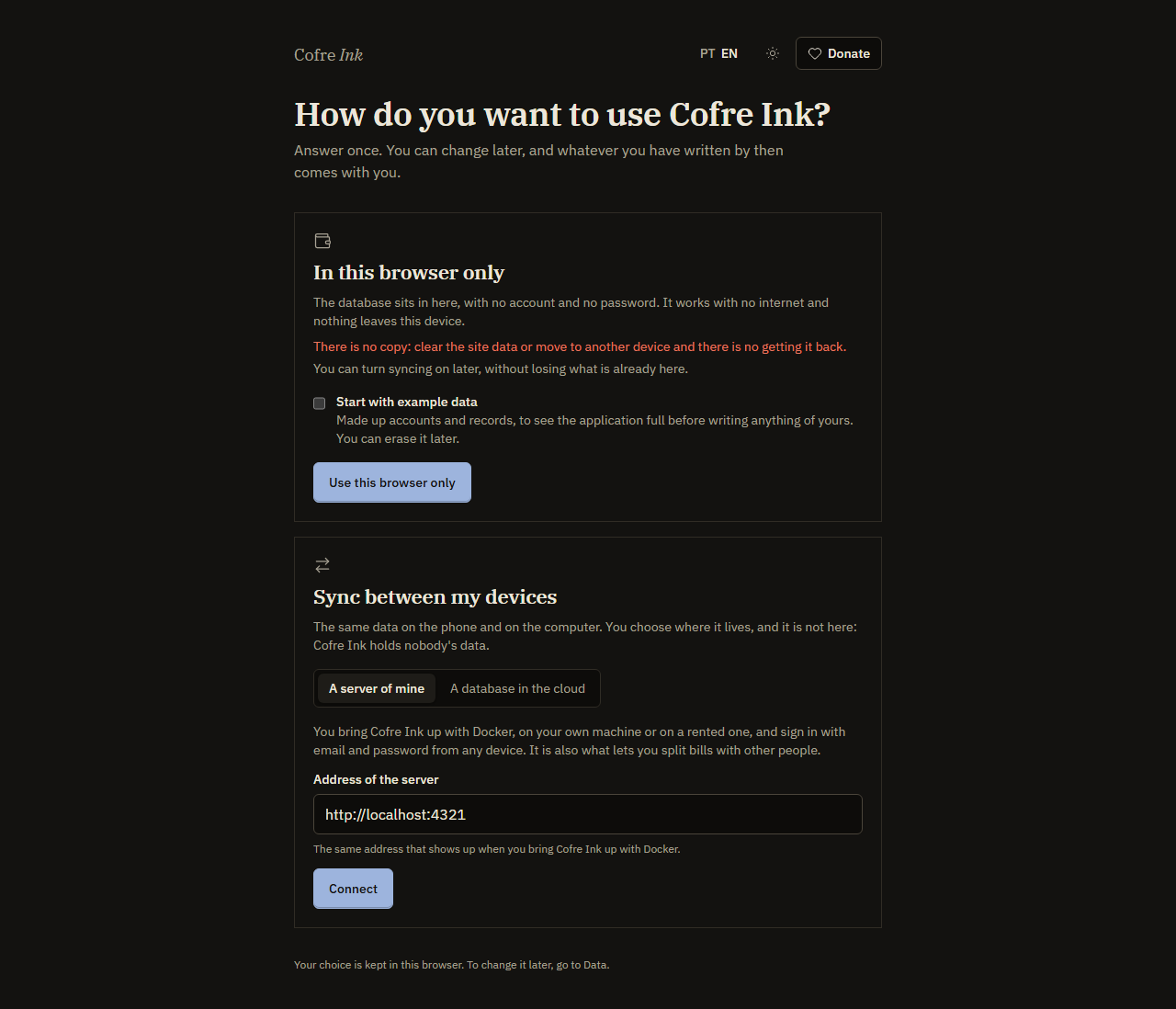
Section titled “In this browser only”On the first screen this is the door In this browser only, with the button Use this browser only. It is how app.cofre.ink works: everybody who opens that address gets an empty Cofre Ink inside their own browser, and whoever runs the address never sees what is written there. The rest of the guide calls this browser mode.
What you get:
- The database sits inside the browser, on this device. There is no account, no password, and nothing is sent anywhere unless you press something that sends it.
- It works with no internet, once the page has been opened with a connection.
- Several people can share the browser, each with a profile of their own. See More than one person per device.
What it asks of you:
- Keep your own copies. The first screen says it plainly: There is no copy: clear the site data or move to another device and there is no getting it back. Backup and restore shows how to save one.
- Accept that whoever opens this browser can see the data. The database is not encrypted, and profiles on one browser have no password between them.
- Keep shared spaces to yourself. You can create them, but nobody else can join a space that lives only in your browser.
A server of your own
Section titled “A server of your own”On the first screen, press See both ways under Sync between my devices, keep A server of mine, type the address in Address of the server and press Connect. The sign in screen comes next. The rest of the guide calls this server mode.
What you get:
- The data lives in a database on your server, and you reach it from your other devices through that server. The server accepts a sign in only from the addresses it was set up with, so opening it from a phone, or by another address, means setting that address on the server first, as Install with Docker explains.
- You sign in with an email and a password.
- Shared spaces with other people: you make an invitation link, they sign in on the same server, and you can split expenses between you. See Members and invitations.
What it asks of you:
- A machine that runs Docker, and the care of keeping it running and backed up. Install with Docker covers it.
- A connection. With no connection, or with the server switched off, the app shows the sign in screen and your data waits on the server.
- A password you do not lose. There is no password reset, and Cofre Ink never sends email.
- Knowing that anybody who can reach the address can create an account on it. A new account sees nothing of yours, but the door is open.
The server also serves the interface, so the simplest thing is to open your server’s own address in the browser. The first screen asks the same question there: choose A server of mine and connect. Type the address with http:// when your server speaks plain HTTP, such as http://localhost:4321, because an address typed without it is tried with https://.
 (opens the picture at full size)
 (opens the picture at full size)
A database in the cloud
Section titled “A database in the cloud”On the first screen, press See both ways, then A database in the cloud and Carry on. The app opens on the Data screen, where you paste the address and the token of a database of yours: one made on a libSQL service such as Turso, or a sqld you run yourself.
This is browser mode with a copy kept elsewhere:
- The data lives in this browser, and everything said above about browser mode still applies.
- The database receives the changes of the open space, and hands back the ones it holds, when you press the sync button on the Data screen, the one that reads Sync Personal now with the name of your space. Nothing syncs on its own.
- The database is yours to provide: an account at a service such as Turso, or a
sqldyou run. The Cofre Ink project runs no service that holds anybody’s data.
Changing your mind later
Section titled “Changing your mind later”The choice is kept in this browser. As the first screen says: Your choice is kept in this browser. To change it later, go to Data. On the Data screen, Change where the data lives takes you back to the first question.
What you wrote does not travel on its own when you change. Read Changing where the data lives before you press it.
Next: First steps follows the browser path from the first screen to your first account.