Members and invitations
A shared space can hold several people, each with a role that decides what they may change. The Members screen shows who is in the space, makes invitation links, changes roles and keeps what each person earns, for dividing expenses by income.
Where to find it
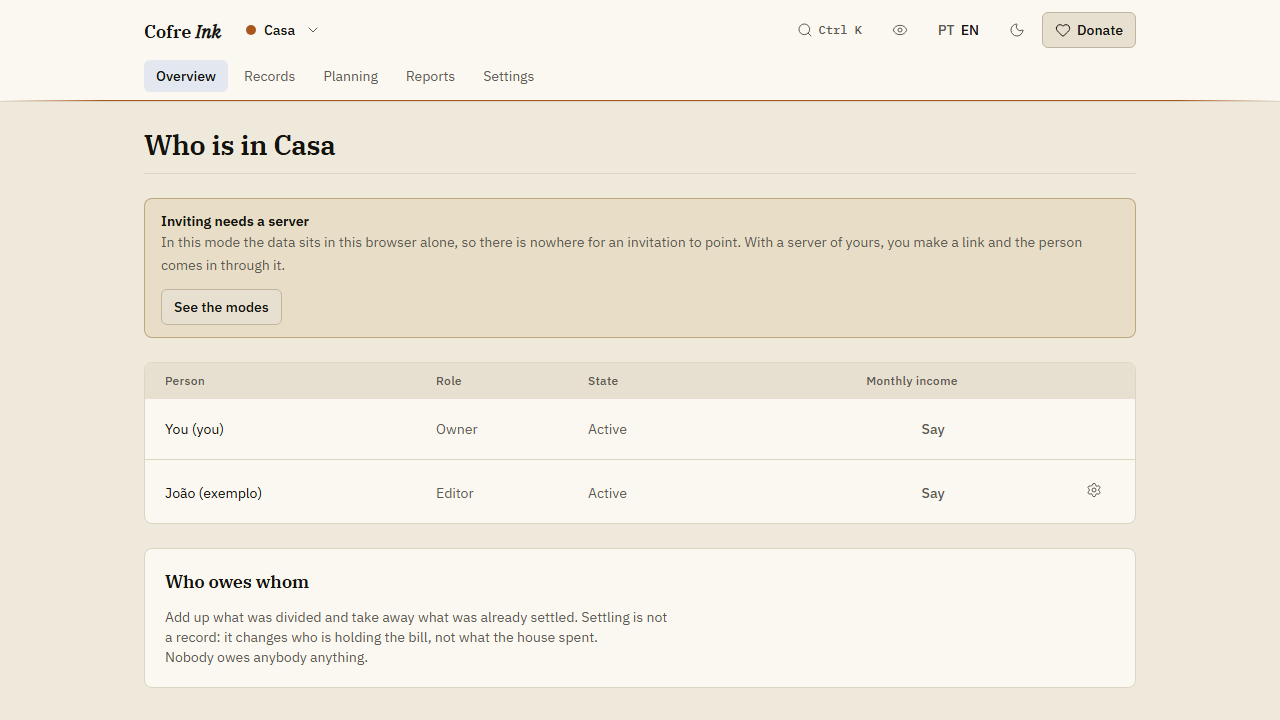
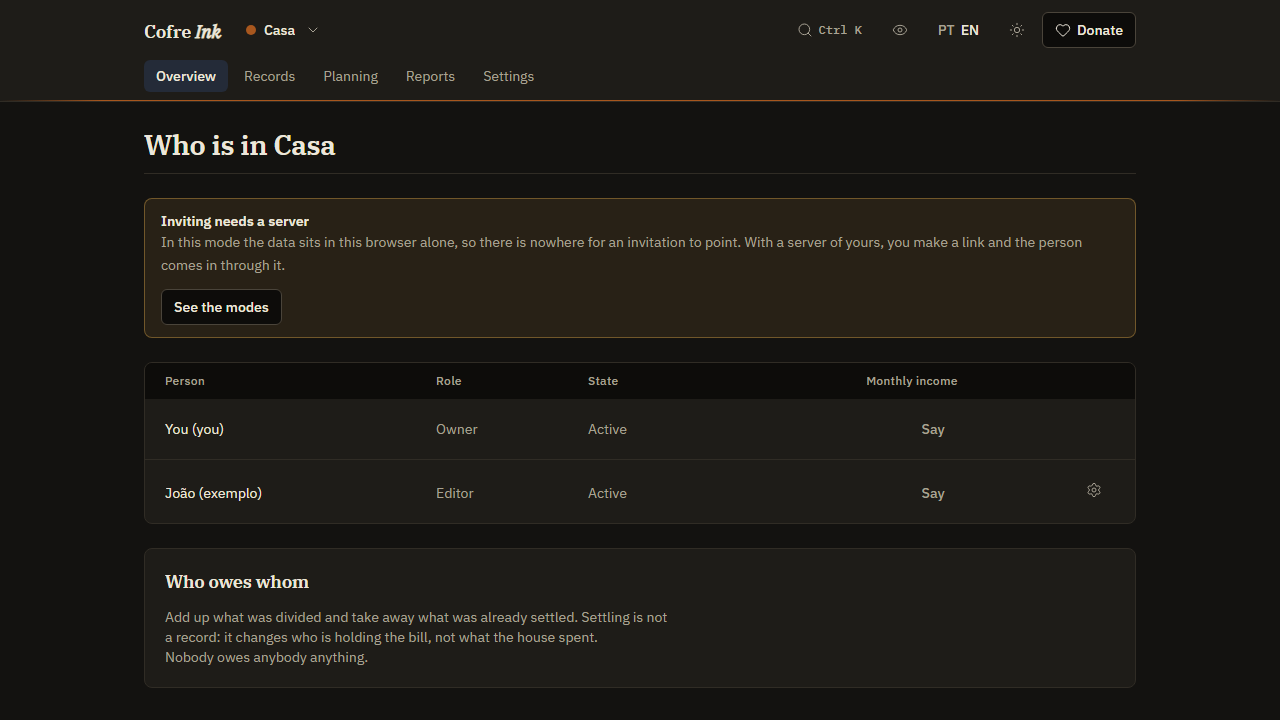
Section titled “Where to find it”Open the space menu, the button with the name of the space at the top of the screen, and choose Members. Members on a line of Your spaces leads to the same screen, and makes that space the open one. It is titled Who is in followed by the name of the space, with the columns Person, Role, State and, in a shared space, Monthly income. In your personal space it carries the note Personal space, because that space takes no members.
 (opens the picture at full size)
 (opens the picture at full size)
What each role can do, as the app enforces it:
- Owner: whoever created the space. Does everything, and is the only one who can erase the data of the space. Cannot be removed and cannot leave.
- Administrator: everything except erasing the space. Invites, changes roles, removes people, edits the name, colour and currency of the space, and saves a backup of it.
- Editor: writes and changes records, accounts, cards, categories, rules, what repeats, limits, goals and investments, checks records against the bank, divides expenses and marks payments. Cannot delete an account or a card, invite, change roles, edit the space or save a backup of it.
- Viewer: sees the whole space and changes nothing in it, apart from keeping saved filters of their own.
- Logger: writes records, and changes or deletes only the ones they wrote. The list of records, Reports and the progress of the limits on Budget show them only their own records. Cannot touch accounts, cards, categories, rules, what repeats, limits, goals, investments or the members, and cannot divide expenses.
Invite someone
Section titled “Invite someone”- Open the shared space and go to Members.
- Press Invite.
- Choose a Role. Editor comes chosen, and the line under the field explains the role.
- Press Make a link.
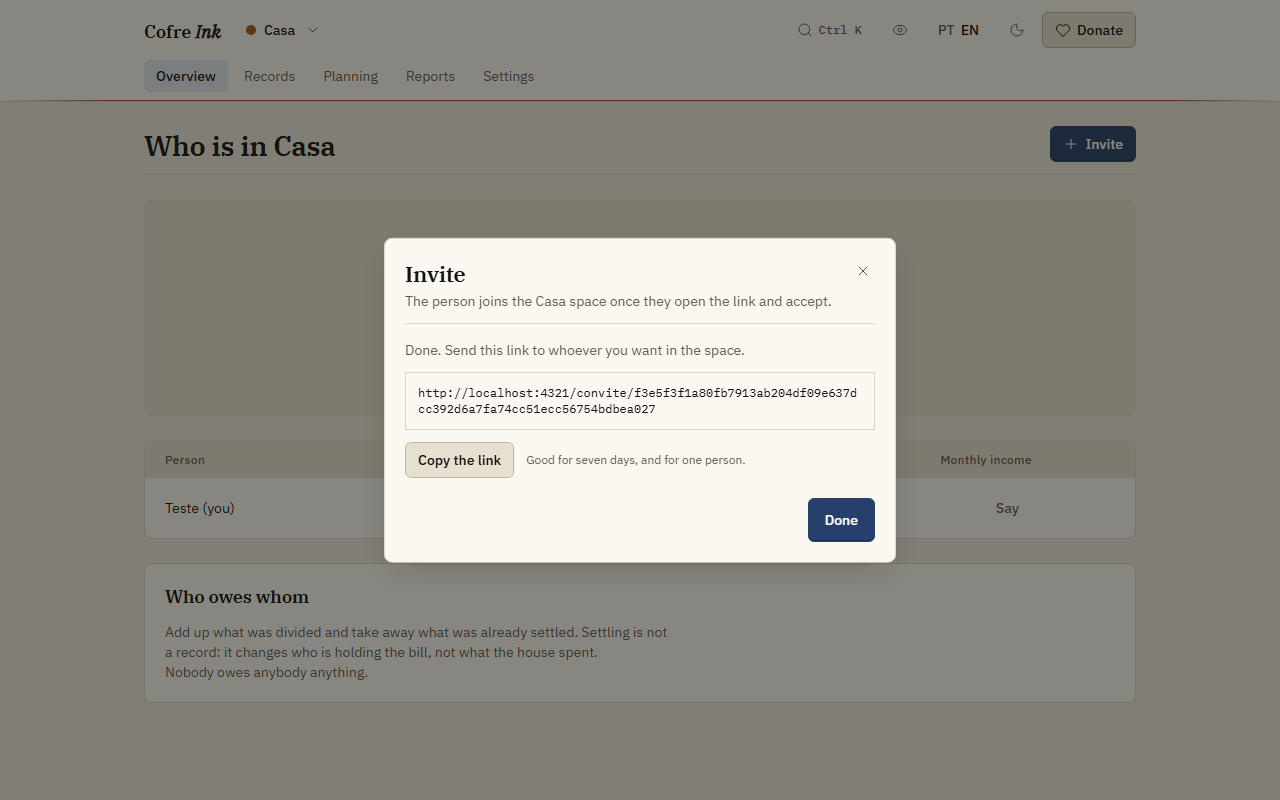
- Press Copy the link and send it however you like. Beside the button the dialog says Good for seven days, and for one person.
- Press Done.
Only the Owner and an Administrator can make a link. The link begins with the address set in COFRE_WEB_ORIGIN on your server, so that has to be an address the other person can open. While you are alone in a shared space on a server, the screen says Just you, for now and offers Invite there too.
 (opens the picture at full size)
Join a space from a link
Section titled “Join a space from a link”- Open the link in a browser.
- If that browser has not used Cofre Ink at that address before, the first screen asks how to use it. Under Sync between my devices, press See both ways and keep A server of mine. Check that Address of the server is the address of the server that sent the link, with
http://orhttps://at the start, and press Connect. - Sign in, or press I do not have an account yet and create one.
- The Invitation screen says who invited you, to which space and with which role. Press Join the space.
Cofre Ink opens the Overview of that space. A link used before says This link was already used. Ask for another one. and an old one says This link has expired. Ask for another one. A browser in browser mode shows This link needs a server: connect it to the server first (see Changing where the data lives) and open the link again.
Change a role, remove someone or leave
Section titled “Change a role, remove someone or leave”- On Members, press the gear button at the end of the person’s line.
- Choose Make followed by the new role, for example Make Viewer, or choose Remove from the space.
The Owner’s line and your own have no gear. To leave a shared space you do not own, press Leave this space, below the table. Whoever is removed or leaves, the records they wrote stay in the space.
Say what you earn
Section titled “Say what you earn”Monthly income is used only to divide expenses by income, and the app says it shows up in no report.
- On your line, in the Monthly income column, press Say (or the amount, if you gave one before).
- Type the amount with a comma before the cents, such as
4500,00, even when the interface is in English. - Press Save.
Leave the field empty and save to stop using it. The Owner and an Administrator can set anyone’s income. Everybody else sees not said on other people’s lines, whether or not those people gave one.
Good to know
Section titled “Good to know”- Changing a role, removing someone and leaving happen at once, with no question to confirm.
- Invite and the gear button show for everyone in a shared space on a server, but only the Owner and an Administrator get through. For the other roles, Make a link is refused, and a change of role or a removal does not happen.
- No screen lists the links you made or cancels one. A link stops working after one use or after seven days.
- The Owner cannot leave, and there is no way to hand a space over to someone else.
Related pages: Spaces, Splitting and settling up, Install with Docker.