Budget, save first and goals
The Budget screen is where you decide money before you spend it: how much you allow yourself each month, how much you put aside first, and what you are saving towards. Every line says how things stand today, not only when the month is over.
Where to find it
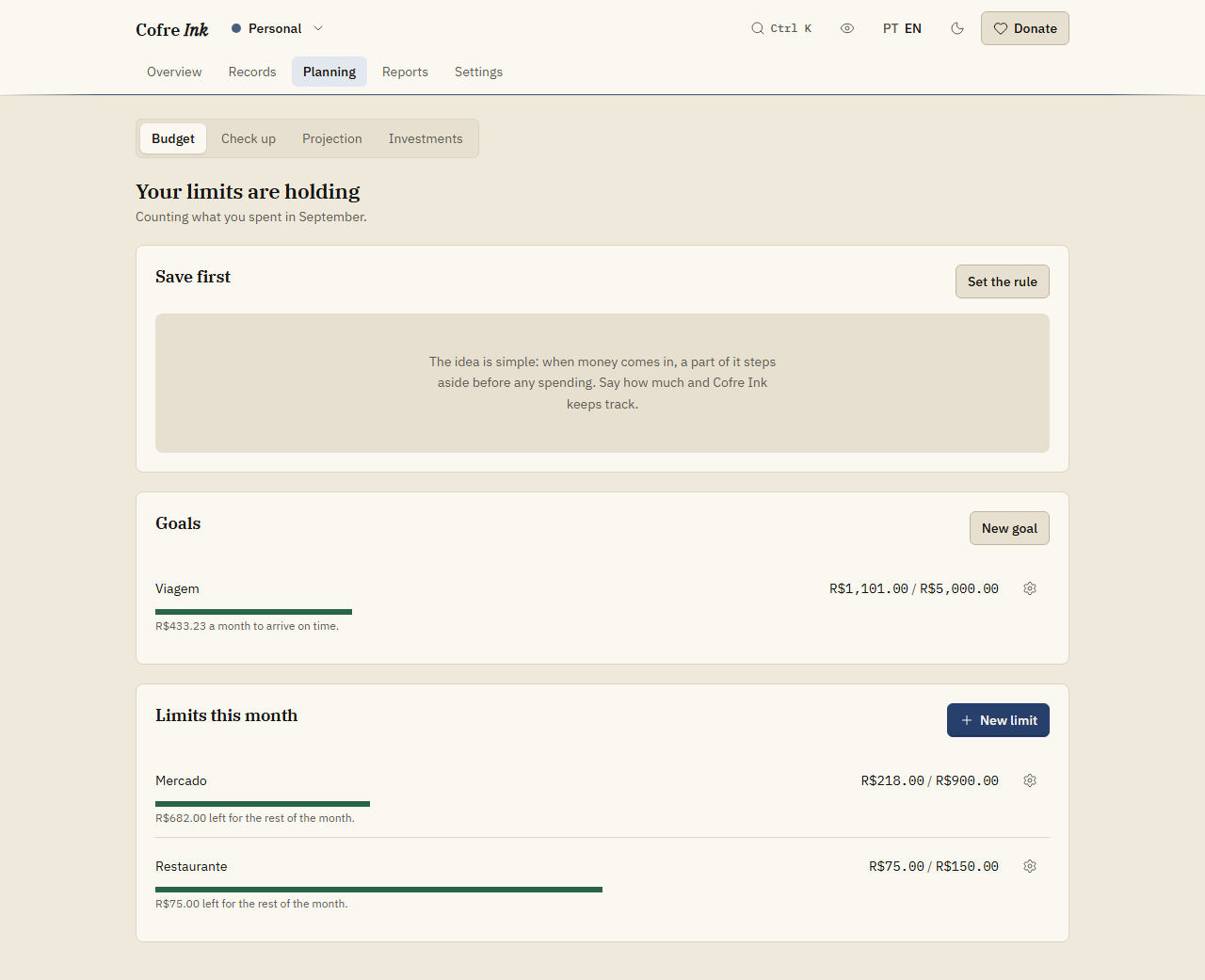
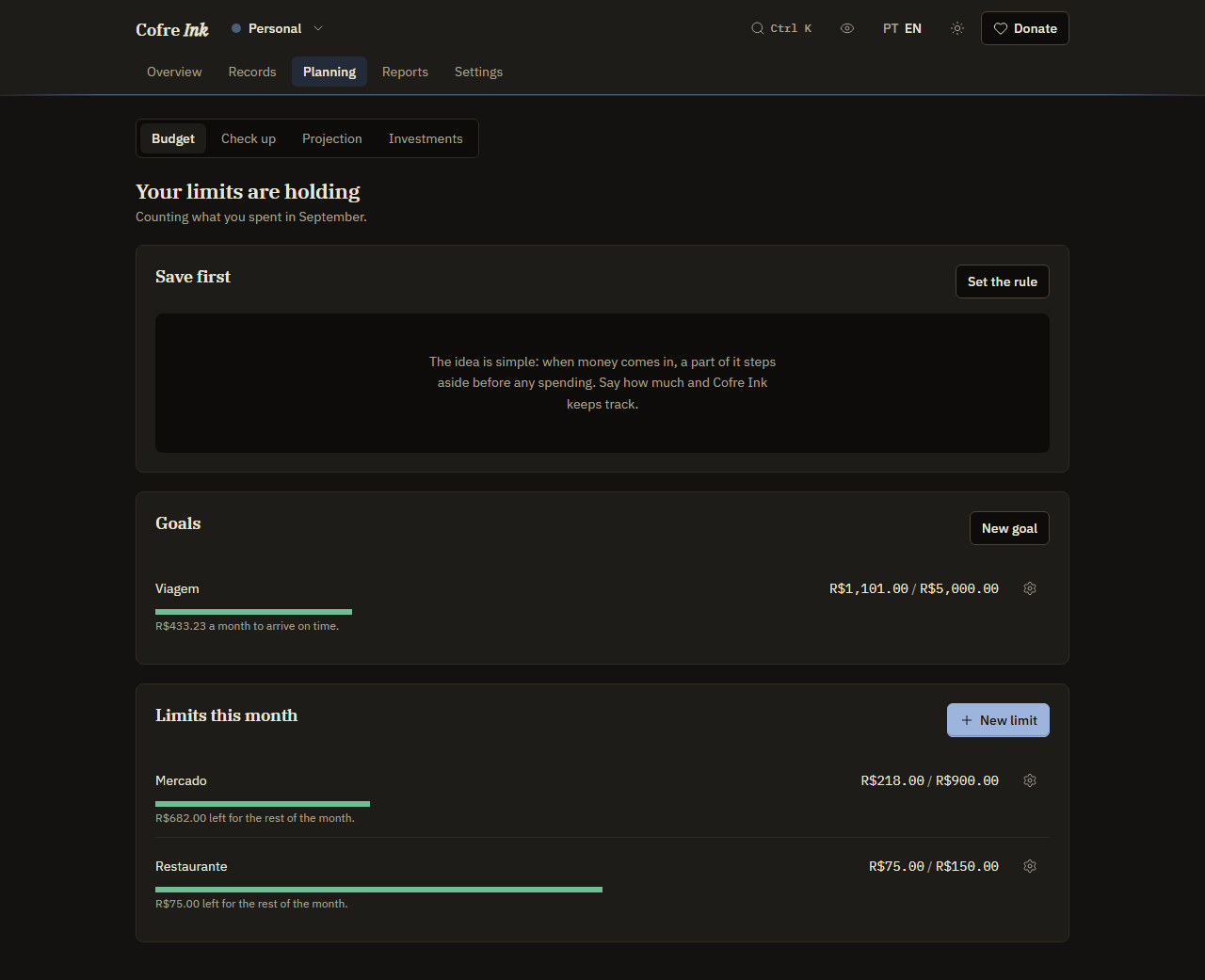
Section titled “Where to find it”Open Planning in the navigation. Budget is the first screen of that section, so it is the one that opens. It has three panels, in this order: Save first, Goals and Limits this month. The headline above them reads No limits set yet, Your limits are holding, or how many limits are over this month.
 (opens the picture at full size)
 (opens the picture at full size)
Set a monthly limit
Section titled “Set a monthly limit”- In Limits this month, press New limit.
- Under Limit on, choose A category, A priority or Everything.
- For a category, pick it in Category (subcategories come right after their parent). For a priority, pick Essential, Important, Desirable or Superfluous in Priority.
- Type the amount in How much a month, with a comma before the cents, for example
1.000,00. - Press Save.
The limit becomes a row with its name, what is spent against what is allowed, a bar and one sentence. The sentence says what is left for the rest of the month, where the month would close at the pace so far, or by how much the limit is already over. That pace is what makes a limit tight: nothing is over yet, but the spending so far, carried at the same rate to the end of the month, would pass it. The bar changes colour with each of the three states.
A limit holds every month until you change it.
Change or remove a limit
Section titled “Change or remove a limit”- There is no edit button. To change an amount, create the limit again on the same category, priority or Everything: the new amount replaces the old one.
- To remove a limit, press the gear button on its row (Limit actions) and choose Delete. It goes at once, without asking.
Save before you spend
Section titled “Save before you spend”Save first is a promise to put a share of what comes in, or a fixed amount, aside before anything else. The panel compares what the rule asks for this month with what actually reached the account where you keep that money.
- In Save first, press Set the rule.
- Under How, keep A share or choose A fixed amount.
- Type the percentage in Share of what comes in (it starts at 10), or the amount in Amount a month.
- In It goes to, choose the account where the saved money sits. It starts on No account yet, which leaves nothing to check against.
- Press Save.
The panel then shows what went in this month against what the rule expects, and says Done this month. or Still short of the rule this month. To change the rule, press Change the rule. The form does not load the saved rule, so check every field before you save, the account included. Delete the rule stops it.
With a share, the rule expects that percentage of the income recorded in the space this month, counting only records that have happened. What counts as put aside is money that reached the chosen account this month and has happened: in practice, a Transfer with that account in Into (see Writing a record).
Save towards a goal
Section titled “Save towards a goal”A goal points at the account its money sits in. What you have saved is the balance of that account, so there is nothing to tick off by hand: moving money into the account is the contribution.
- If the money has no account of its own yet, create one first in Settings, Accounts, New account, for example of kind Savings (see Accounts).
- In Goals, press New goal.
- Type the Name and the target in How much.
- If you like, pick a date in By when. With a date, the row says how much a month gets you there on time.
- Choose the account in Where the money sits.
- Press Save.
The row shows the balance of that account against the target, a bar and one sentence: how much is left, how much a month is needed when there is a date, or Goal reached. To remove a goal, press its gear button (Goal actions) and choose Delete. The account and its money stay as they are.
Good to know
Section titled “Good to know”- The screen works the same way in browser mode and in server mode, and it always shows the current month of the space that is open. There is no month picker, and a limit cannot be set for one month only.
- Only expenses count against a limit. A limit on a category counts the records filed under that category itself, not under its subcategories, so put the limit where the spending is filed.
- The priority that counts is the one on the record, or its category’s when the record has none.
- Money fields on this screen read a point as a thousands separator and a comma as the decimal mark, whatever the language:
1.000,00is one thousand, and1,000.00would be read as one. - One account holds one goal at a time, so the same money never counts twice: a second goal on the same account is refused. A goal cannot be edited; delete it and create it again.
- There is one savings rule per space, and a share above 100 per cent is refused.
- In a shared space every member sees the limits, the rule and the goals, and only an Owner, Administrator or Editor can change them. Having other people in a space needs server mode (see Members and invitations).
- The Overview also brings up a limit that is over or tight, a savings rule that is behind and a goal that is reached, in What needs attention (see Notices and findings).
The check up turns your goals into a plan, with a month on each step.