First steps
The first time you open Cofre Ink it asks one question and nothing else. This page follows the most common path, with the data kept in your browser, from that question to your first account.
Open the app
Section titled “Open the app”- Open app.cofre.ink in an ordinary browser window. A private window keeps nothing once it closes.
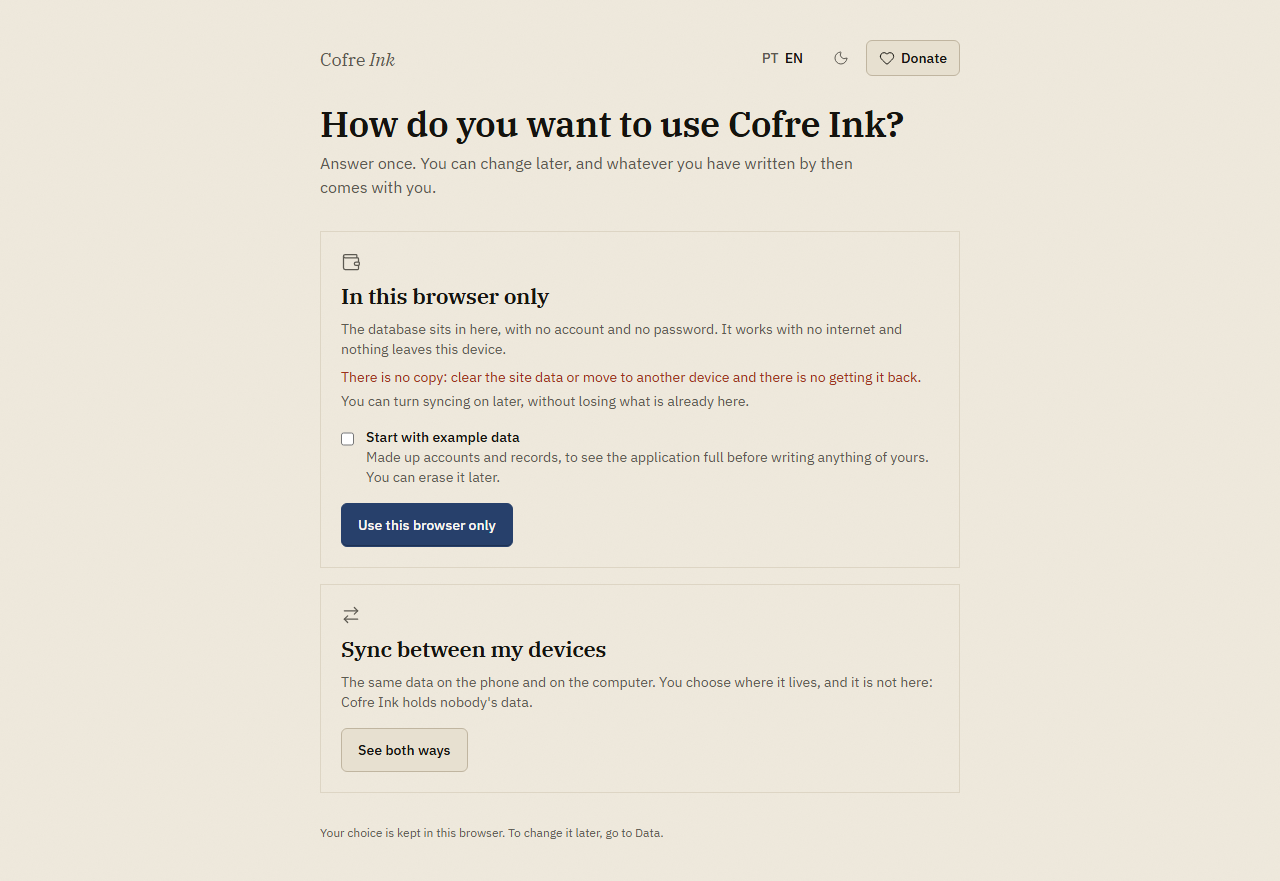
- The screen asks How do you want to use Cofre Ink? and offers two doors: In this browser only and Sync between my devices.
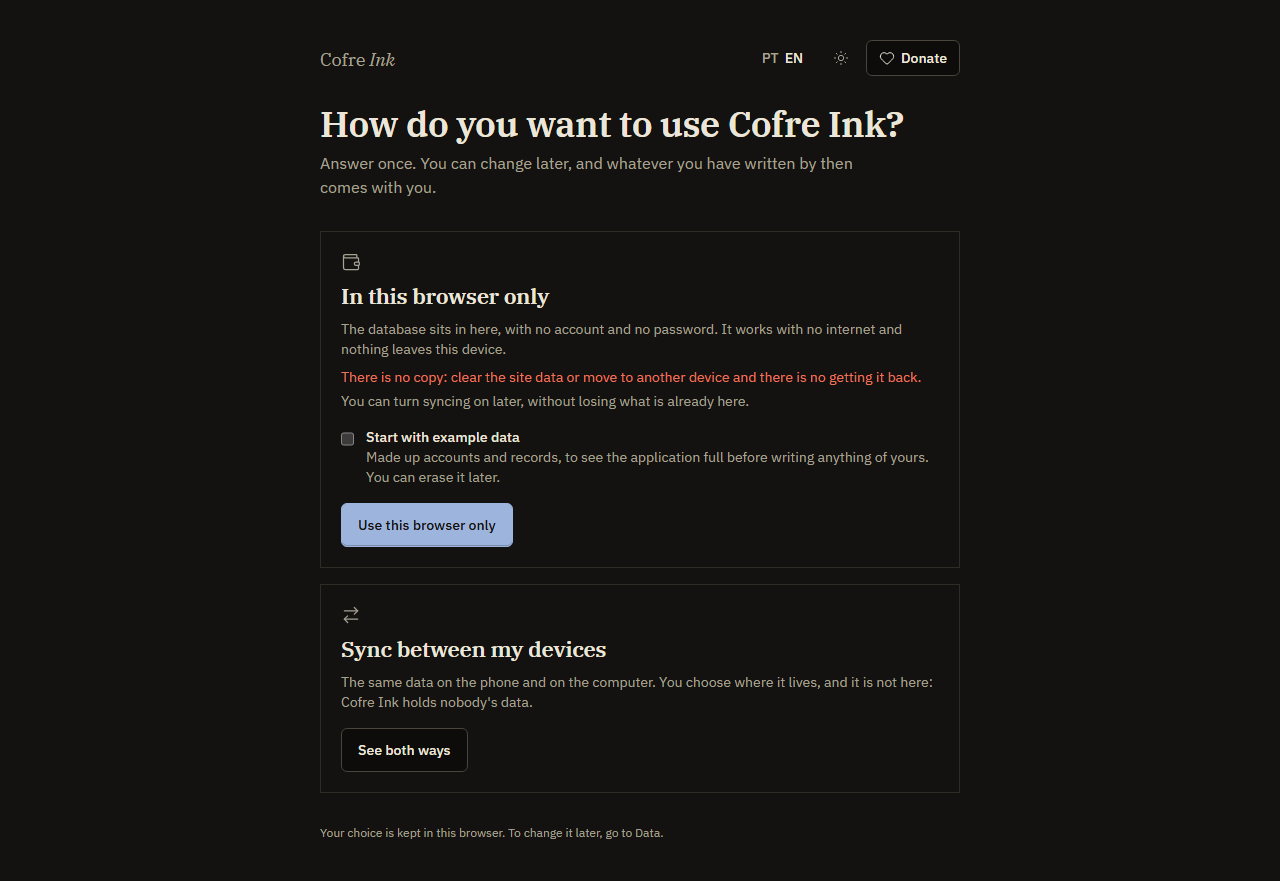
At the top right, PT EN switches the language and the sun or moon button switches between light and dark. The screen opens in English or Portuguese as Language explains; to start in the other one, switch before you choose a door, because the names created for you take the language on screen. If you are not sure which door to take, Where your data lives compares them.
 (opens the picture at full size)
 (opens the picture at full size)
Start in this browser
Section titled “Start in this browser”- Under In this browser only, decide about the box Start with example data. Tick it to see the screens filled with made up accounts and records before you write anything of yours. Leave it empty to start clean.
- Press Use this browser only. The button reads Opening for a moment.
Nothing else is asked: no name, no email, no password.
What is created for you
Section titled “What is created for you”- A profile called You. To put your own name on it, open the space menu (the button with the name of the space, at the top) and choose Change my name.
- A personal space called Personal. It is private and can never be shared. To rename it, open the space menu, choose Manage spaces and press Edit on its row.
- The starting set of categories, in the language the screen was in at that moment. You can rename, delete and add in Settings, Categories. See Categories and priorities.
If you ticked the example data, you also get:
- Accounts and cards at a made up bank, about two weeks of records, records from the three months before, a purchase split into instalments and two investments.
- A second space, a shared one named Casa, with a made up member called João (exemplo).
The example names are in Portuguese whatever language the screen is in.
Where you land
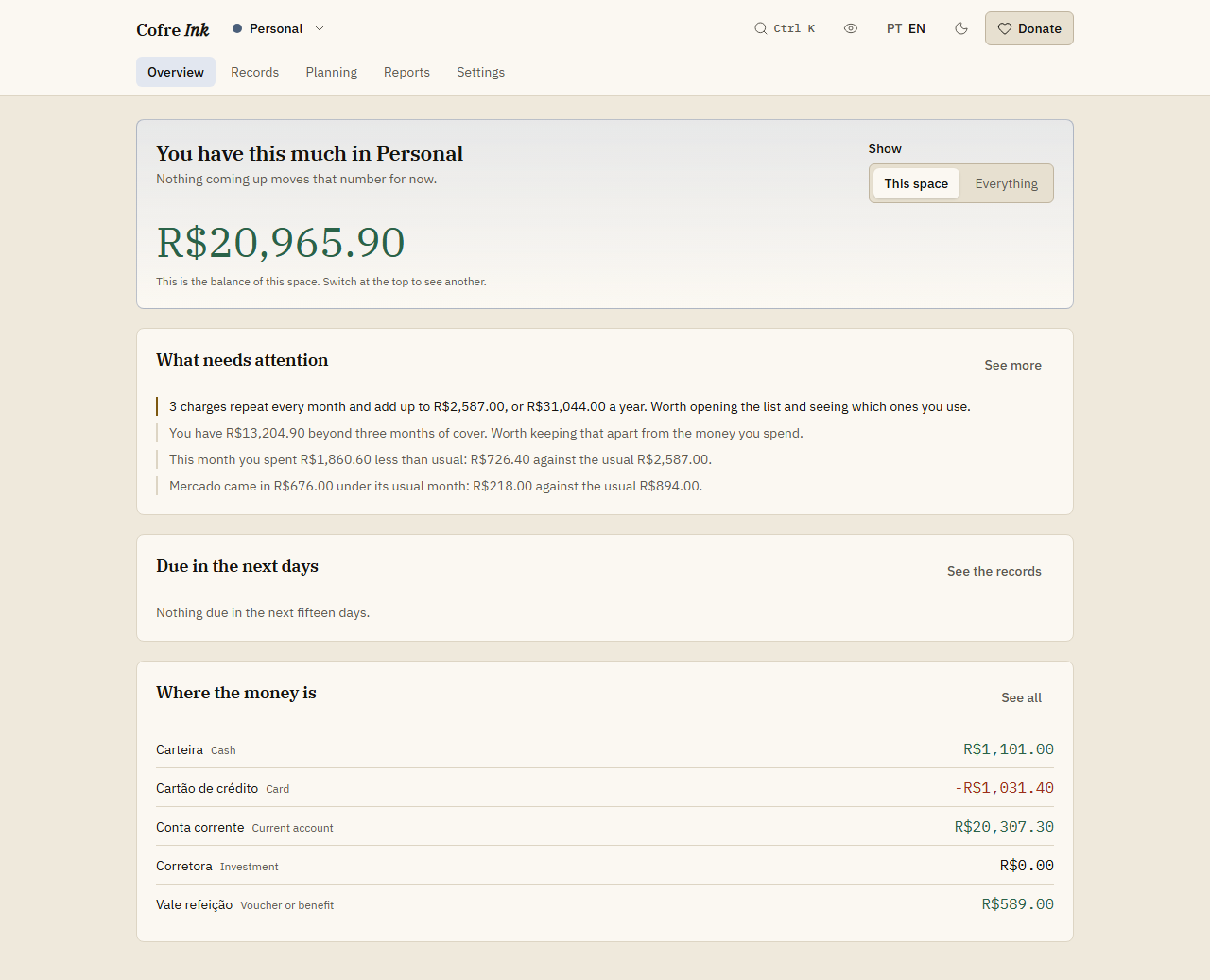
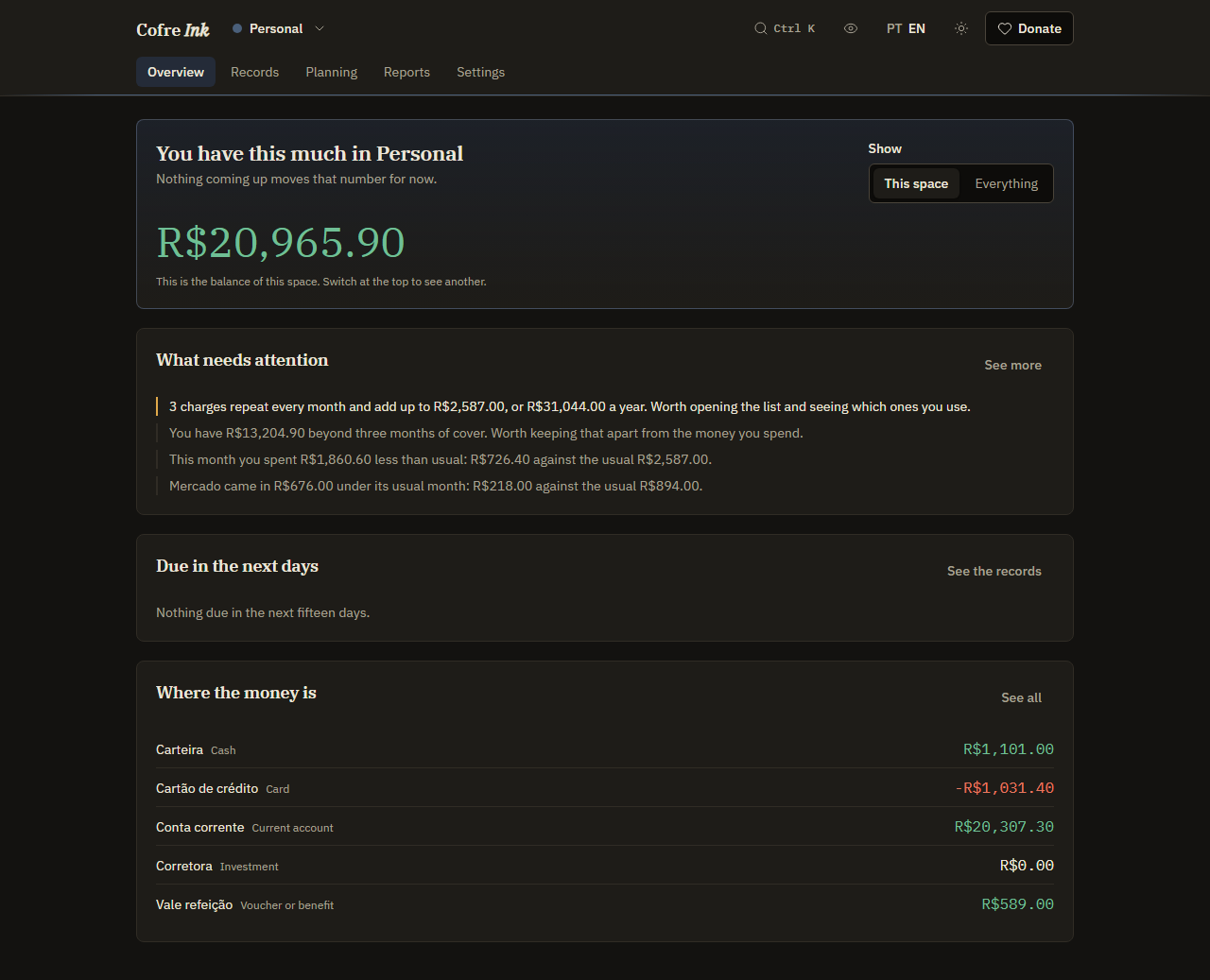
Section titled “Where you land”You land on the Overview, under the heading You have this much in Personal, with the balance of the space under it. Below come Due in the next days, which lists what is planned for the next fifteen days, and Where the money is, which lists your accounts. A panel called What needs attention appears only when there is something to say.
Starting clean, Where the money is says No accounts here yet and offers New account. With the example data there are two spaces, so a Show switch appears at the top with This space and Everything.
 (opens the picture at full size)
 (opens the picture at full size)
Add your first account
Section titled “Add your first account”- On the Overview, press New account. It opens Settings, Accounts.
- Press New account there, fill the form and press Save. The screen suggests where to begin: Start with the account your salary lands in. Cards, cash and investments can come later. Check the form before saving, because an account cannot be edited once it is created.
Accounts explains each field. After that, Writing a record and Importing a statement are the two ways to put your money in.
Good to know
Section titled “Good to know”- Everything stays in this browser. Save a copy now and then, from Settings, Data, as shown in Backup and restore. Clearing the site data erases it.
- Example data and your own records live side by side in the same spaces, and nothing on screen marks which is which. To remove the examples later you erase the data of those spaces, which also erases whatever you wrote there (see Erasing data). If you mean to start for real, do it before you begin, or start without the examples.
- Cofre Ink is made for reais. Accounts are in BRL and nothing converts between currencies.
- Days and months follow Brasília time. What counts as today, and when a month turns, does not follow the clock of your device if you are elsewhere.
- If you chose A server of mine instead, the next screen is the sign in, and example data is not offered there. Install with Docker describes that first visit.
Next: Finding your way is a map of the screens.