From a spending spreadsheet to a personal finance app
A spending spreadsheet, in Excel or Google Sheets, is a sound way to keep track of household money. This page is for when it starts to take more work than it gives back: what a spreadsheet does well, where a budget spreadsheet gets heavy, and how to move to an app such as Cofre Ink without throwing the spreadsheet away.
What a spending spreadsheet does well
Section titled “What a spending spreadsheet does well”- It does what you tell it: any column, any formula, any layout.
- It is yours. The file sits where you put it, and you decide who opens it.
- A file on your own computer asks for nothing: no account, nothing new to learn.
- It travels. A CSV or XLSX file opens in more than one program.
If your spreadsheet is up to date and answers your questions, you may not need an app.
Where a budget spreadsheet gets heavy
Section titled “Where a budget spreadsheet gets heavy”The arithmetic is the easy part. The work comes from money that does not stay in one row of one month.
- The card invoice. A purchase made after the invoice closes goes on the next one, so every purchase needs a formula, or you, to decide which month it belongs to.
- Instalments. R$ 1,200 in three instalments is three lines of R$ 400 in three months, each typed or copied forward.
- Bills that repeat. Rent and subscriptions are copied into every month, and a forgotten copy makes the month look better than it was.
- Totals by category. They depend on formulas, and a category typed two ways, such as Groceries and Grocery, becomes two lines.
- The phone. A grid on a small screen is slow to fill, so expenses wait for later.
- A second person. Sharing one file means whoever opens it sees every line.
Moving your spending spreadsheet into Cofre Ink
Section titled “Moving your spending spreadsheet into Cofre Ink”Cofre Ink is an open source personal finance app you can use as an alternative to a budget spreadsheet, or next to one. At app.cofre.ink it runs inside your browser, with no account (Where your data lives). Your spreadsheet comes in through the import, which shows every line before anything is written.
Prepare first:
- Create the accounts (Accounts). A balance is the opening balance plus every record that has happened, whatever its date. So when you bring in past months, type in Opening balance what the account held before the first line of the file. An account cannot be edited once saved.
- Write your rules. A Category column in the file is not written: categories come from the rules.
- Save the file as CSV or XLSX, with the column names in its first row. The whole file goes into one account, so a spreadsheet that mixes accounts becomes one file for each. From an XLSX file only the first tab is read, so if you keep a tab for each month, save each tab as a CSV file of its own.
Then import it:
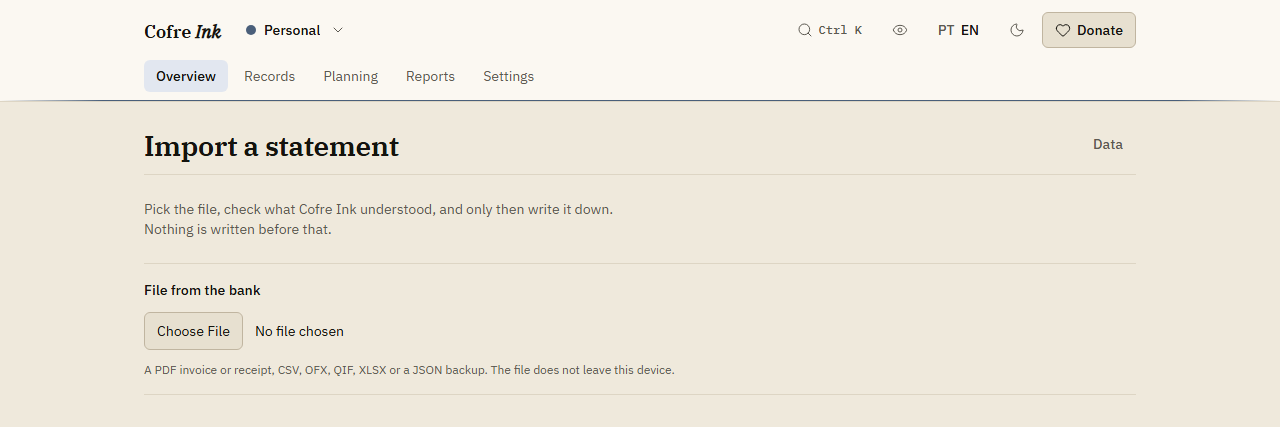
- Open Settings, then Data, and next to Import a statement press Open the import.
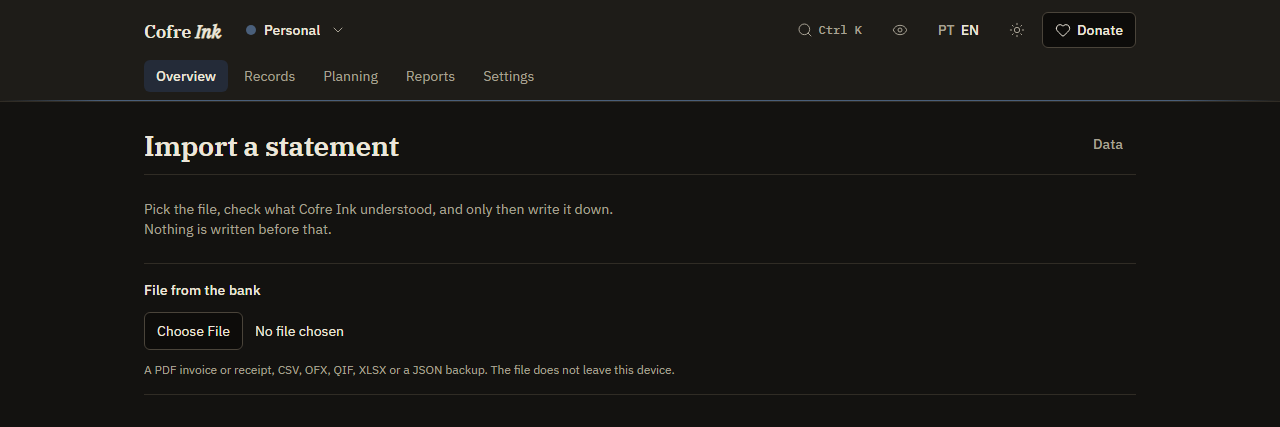
- Under File from the bank, choose the file. Nothing is written yet.
- Check Into which account and The columns.
- Check Positive amounts in this file. Are money leaving turns every amount in the column into spending, which suits a column of spending only, and Cofre Ink picks it by itself when nothing in the file is negative. When income shares the column, write the spending with a minus sign and choose Carry the sign the bank wrote, or split the two into columns marked Money out and Money in.
- Untick what you do not want and press the button that counts the records, such as Write 12 records.
 (opens the picture at full size)
 (opens the picture at full size)
Rows with no date, such as a total at the bottom, are left out and listed. Every line arrives as an expense or an income that has happened, so untick a line that only moved money between two of your own accounts and write it as a transfer (Writing a record). Expect to correct the columns or the sign the first time (Importing a statement).
Writing new records in one line
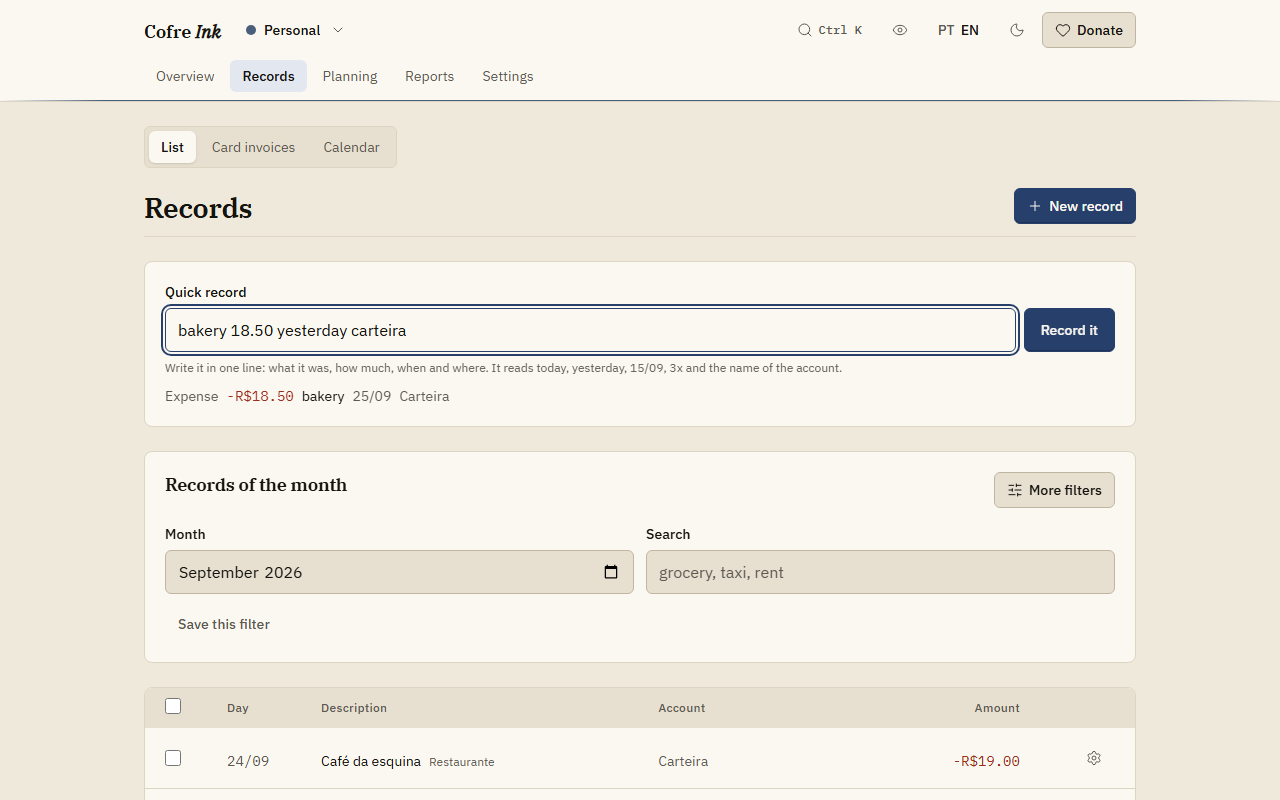
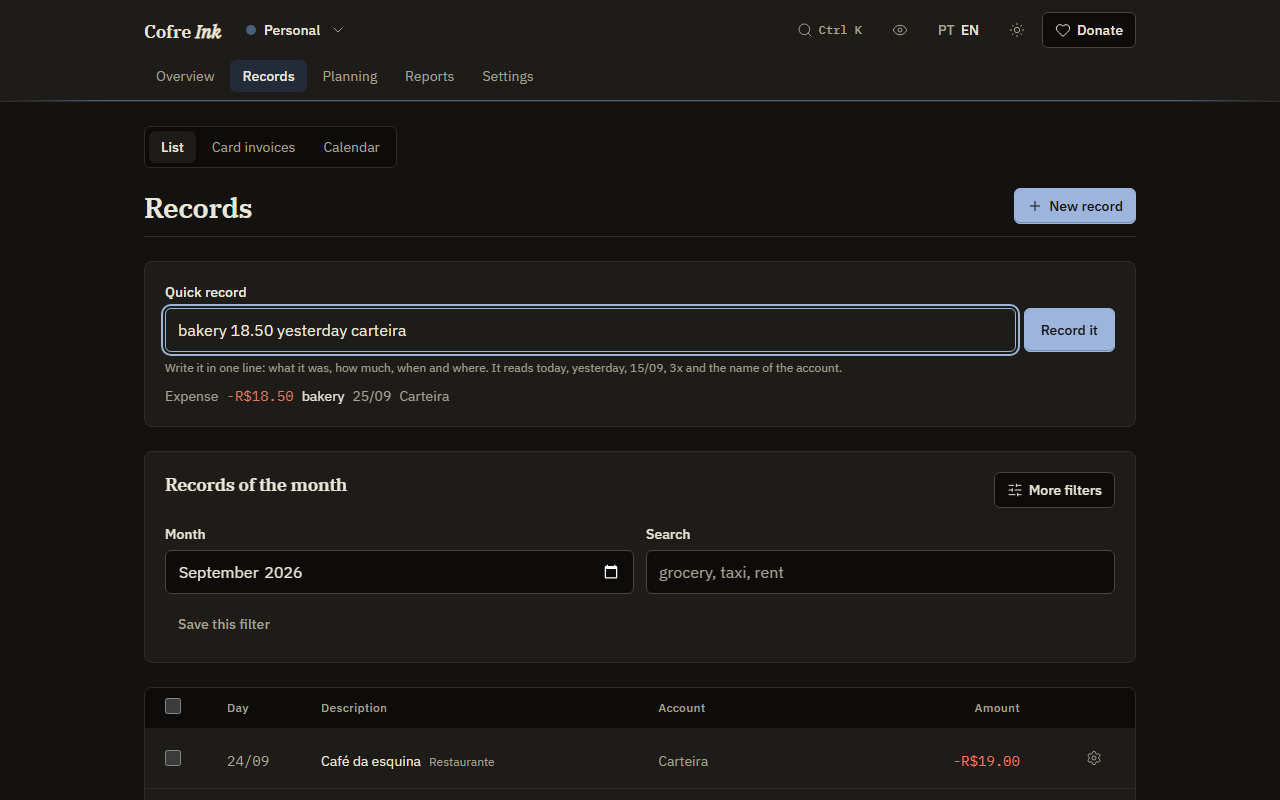
Section titled “Writing new records in one line”From then on, most records fit in one line, typed into Quick record at the top of Records, List. With an account called Wallet, bakery 18.50 yesterday wallet is an expense of 18.50 dated yesterday. Check the line under the field that repeats what was understood, and press Record it. Adding 3x splits a purchase into three instalments (Quick entry).
 (opens the picture at full size)
 (opens the picture at full size)
Quick record works on a phone too, but in browser mode each browser keeps its own data. To use the phone and the computer together, run a Cofre Ink server of your own (Install with Docker), or keep the money in a shared space and sync it (A copy elsewhere, and a second device): the personal space does not sync between devices.
What the app does in place of formulas
Section titled “What the app does in place of formulas”- Categories. In the browser, a new space comes with a starting set two levels deep, and each spending category carries a priority, from Essential to Superfluous (Categories and priorities).
- Rules. A rule that sends every description holding
supermarketto Groceries sorts each record that arrives with no category, and Run over the old ones sorts those already there. - Totals. Reports shows each month by category and by priority, and twelve months side by side (Reports).
- Invoices and instalments. With closing day 3 and due day 10 on the card account, R$ 1,200 in three instalments bought on 5 September becomes three parts of R$ 400, on the October, November and December invoices (Card invoices).
- What repeats. Describe the rent or a salary once, and it is written as planned records up to about two months ahead, when you save it and each time you open the Calendar. Planned records touch the balance only once marked as paid (What repeats, and the calendar).
- A second person. A shared space sits apart from each personal space, and an expense can be divided evenly, by shares or by income. Inviting the other person needs a Cofre Ink server of your own (Members and invitations).
Keeping a spreadsheet anyway
Section titled “Keeping a spreadsheet anyway”In Settings, Data, open Take the data to another program. Both ways out cover the open space (CSV and spreadsheets).
- Records as CSV: Download CSV gives every record of the space in fourteen columns separated by semicolons, with amounts written the Brazilian way, as in
-1.234,56. A spreadsheet set up for Brazil opens the file as it is; one that uses a point for decimals needs its import option. - Mirror into a Google spreadsheet: writes the same table into a tab called
Cofreof a spreadsheet in your Google account. Each press of Mirror now clears that tab and writes it again. It goes one way: what you change there is overwritten the next time and never comes back.
Nothing is locked in: Save a copy writes everything in a space to one file (Backup and restore), and the code is open source under the MIT licence.
Try it
Section titled “Try it”To look around first, tick Start with example data. To bring in your real spreadsheet, start without it, because the examples share the spaces with what you write (First steps).
Related pages: Importing a statement, Quick entry, CSV and spreadsheets.