Card invoices
For each card account, this screen shows the invoice that today’s purchases land on: when it closes, when it falls due, how much it charges and which purchases are on it.
Where to find it
Section titled “Where to find it”Open Records, then Card invoices.
The screen needs a card account: in Settings, Accounts, New account, the kind Card with How it works set to Credit or Multiple, and a Closing day and a Due day. Without one, the screen says No credit card in this space and offers New account. See Cards and vouchers.
Which invoice a purchase lands on
Section titled “Which invoice a purchase lands on”Everything follows from the two days of the card:
- A purchase made before the closing day lands on the invoice that closes that month. A purchase made on the closing day or after it lands on the next one.
- An invoice is named after the month it closes in. It covers from the closing day of the month before to the day before its own closing day.
- When the due day comes after the closing day, the invoice falls due in the same month. Otherwise it falls due in the next month.
- A day that a month does not have, such as the 31st, falls on the last day of that month.
For example, with closing day 3 and due day 10, a purchase on 2 September is on the September invoice, which falls due on 10 September. A purchase on 3 September is already on the October invoice. With closing day 28 and due day 5, the September invoice falls due on 5 October.
A purchase in instalments puts each part on its own invoice, one a month, with the part at the end of the description, such as 1/3 and 2/3.
The invoice of a purchase is worked out when the record is written. Changing the date or the account of a record works it out again.
Read an invoice
Section titled “Read an invoice”- Open Card invoices. With more than one card account, pick one in Card.
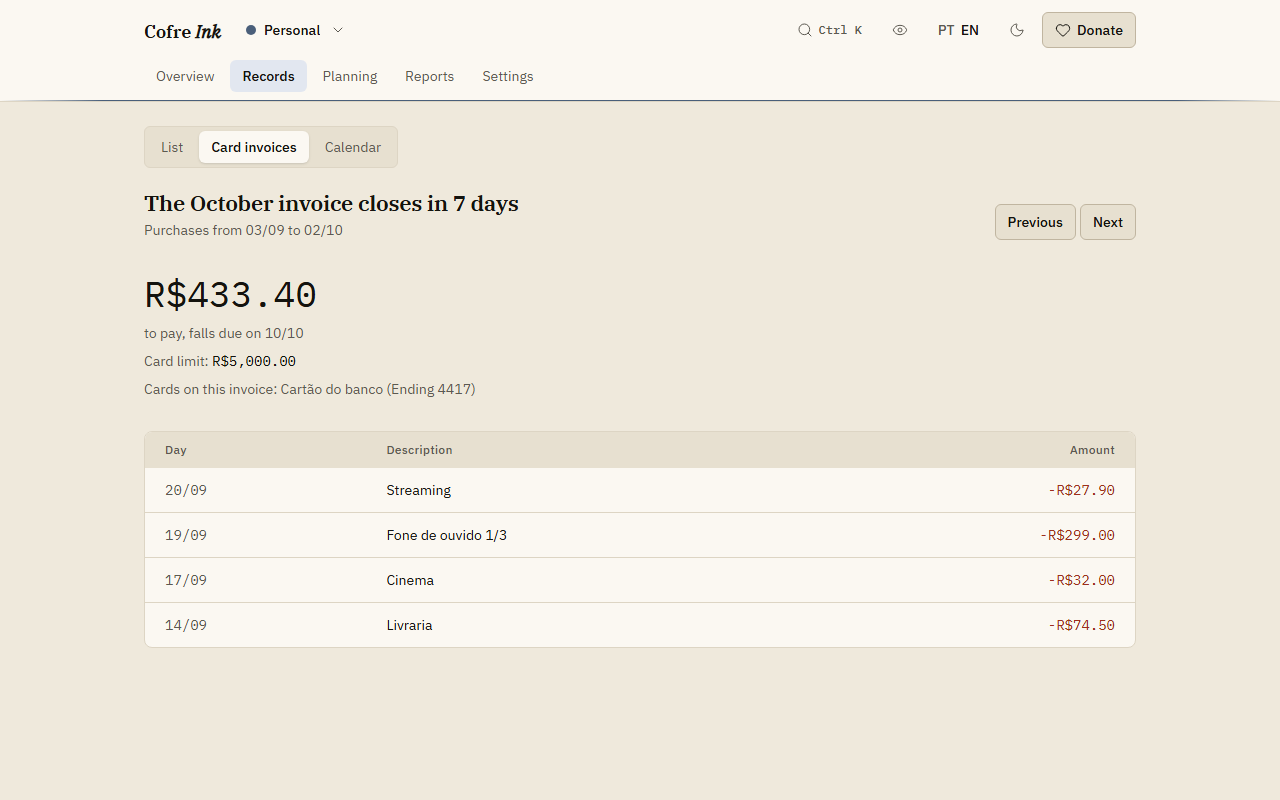
- The headline says where the invoice stands, for example The September invoice closes in 5 days, The September invoice is closed and falls due in 3 days, The September invoice falls due today or The September invoice fell due 2 days ago. Under it, a line such as Purchases from 03/08 to 02/09 gives the period.
- Then comes the amount, followed by to pay, (or in credit for you, when what came back is more than what was spent) and falls due on with the date. When the card account has a limit, Card limit: shows it. Cards on this invoice names each card that charges it, with its last four digits when they were given.
- The table lists each purchase with Day, Description and Amount.
- Press Previous and Next to move one invoice at a time.
The screen always opens on the invoice that today’s purchases land on.
 (opens the picture at full size)
 (opens the picture at full size)
Good to know
Section titled “Good to know”- There is no step for paying an invoice. The screen shows what an invoice charges and when it falls due; it does not record whether it was paid.
- The closing day and the due day are chosen when the card account is created. The form starts them on 3 and 10, and an account cannot be edited afterwards, so check both days against your card before you save.
- A card invoice or statement read into the card account through the import lands on the right invoices too.
- The invoice works the same in the browser and on a server of your own.
For the purchases themselves, see Writing a record and The list of records.