Finding your way
Every screen of Cofre Ink sits in one of five sections, and the header above them holds the space you are in and a few switches. This page is the map.
The five sections
Section titled “The five sections”- Overview: the balance of the space, what falls due in the next days, where the money is and what needs attention.
- Records: the screens List, Card invoices and Calendar.
- Planning: the screens Budget, Check up, Projection and Investments.
- Reports: the month read back, by category, by priority, by day and over twelve months.
- Settings: the screens Accounts, Categories and Data.
On a wide screen the five sit in a row at the top. On a phone they become a bar along the bottom, an icon over each word. When a section holds more than one screen, those screens appear as a second row at the top of the content, and the section opens on the first of them: Settings opens Accounts.
Some screens live outside the five. Manage spaces and Members are in the space menu, described below. The import is reached from Data, with Open the import, or from the command palette, as Import a statement.
The header
Section titled “The header”From left to right: the name Cofre Ink, which takes you back to the Overview; the space menu; the search button, which opens the command palette and shows Ctrl K on a wide screen; the eye that hides amounts; PT EN for the language; the sun or moon for the theme; and Donate, which opens this site’s donation page in a new tab, in the language the interface is in.
A thin line under the header carries the colour of the space you are in, so you can tell at a glance where you are writing.
Switch space, and the space menu
Section titled “Switch space, and the space menu”The space menu is the button with the name of the current space. It holds:
- Switch space, with every space you belong to. A tick marks the one you are in. Click another to move there.
- Manage spaces, which opens the list of your spaces (see Spaces), and Members, which opens the people of the current space (see Members and invitations).
- You are followed by your name. Under it, when the data lives in this browser: Change my name, Come in as followed by the name of each other profile on this device, and Add somebody else on this device (see More than one person per device). On a server, Sign out takes its place.
The command palette
Section titled “The command palette”One box to reach any screen, switch space or run an action from the keyboard.
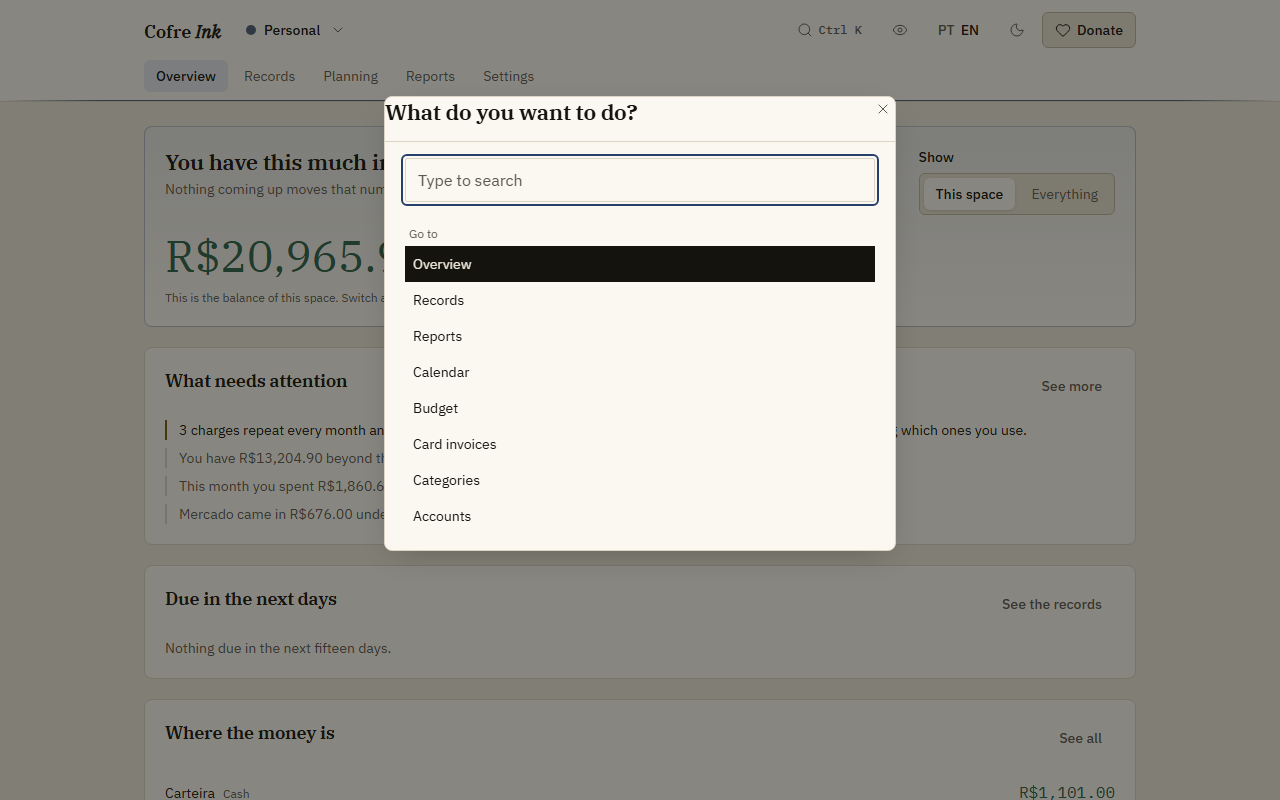
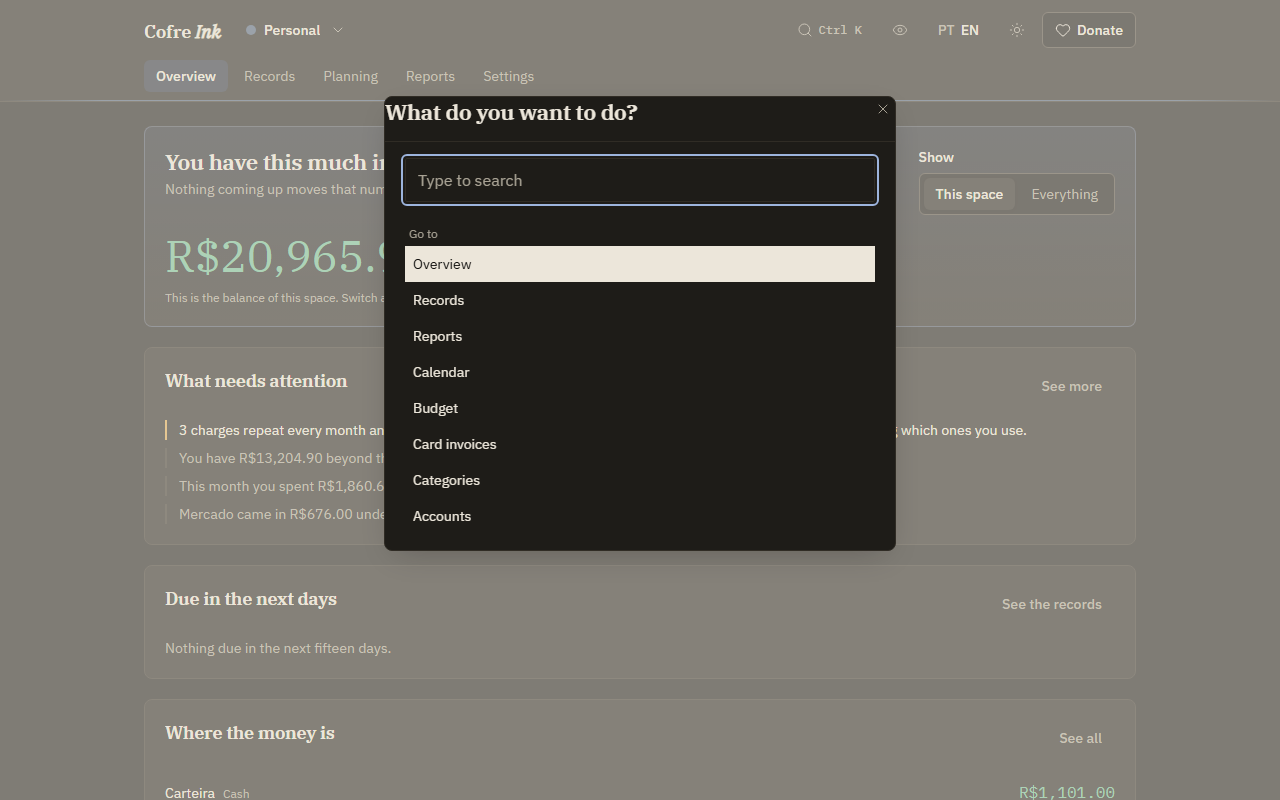
- Press Ctrl+K (Cmd+K on a Mac), or press the search button in the header. A box opens under the title What do you want to do?
- Type part of a name, for example
accfor Accounts, or the name of a space. - Move with the up and down arrows, press Enter to go. Escape closes the box.
The results come in three groups:
- Go to: every screen, including Import a statement.
- Switch space: one line per space.
- Actions: Hide amounts (or Show amounts), Light theme, Dark theme, Sign out on a server, and the other language (English or Portuguese). When the data lives in this browser, Sign out is replaced by Change where the data lives, which takes you back to the first screen: read Changing where the data lives before you use it.
Ctrl+K is the only keyboard shortcut. For keyboard users, the first press of Tab on any screen reaches Skip to the content, which jumps past the header.
 (opens the picture at full size)
 (opens the picture at full size)
Hide amounts
Section titled “Hide amounts”Press the eye in the header (its name is Hide amounts) and every digit of the amounts on screen becomes a dot, keeping its width. Press it again (Show amounts) to bring them back.
- Amounts written inside sentences stay visible, and many screens have them: the notices on the Overview, and sentences on Budget, Calendar, Reports, Projection, Check up and Investments. It keeps figures away from a passing glance, not from somebody reading the screen.
- It is not remembered. Every time the app opens, amounts are shown.
Light and dark
Section titled “Light and dark”The sun or moon button switches the theme, and the palette offers Light theme and Dark theme. Until you press it, Cofre Ink follows the setting of your system; once you press it, it keeps your choice on this device. A printed page is always black on white.
Language
Section titled “Language”PT EN switches between Portuguese and English; the one in full ink is the current one. The palette offers the same switch. Your choice is kept in this browser. The Donate link switches with the interface, to this site’s page in the same language.
When Cofre Ink opens, the first of these that gives an answer decides the language:
- The address, when it carries
?lang=ptor?lang=en. Links from this site can carry it, so the app opens in the language you were reading. It counts as a choice: it is kept in this browser, it wins over a choice made before, and it is taken out of the address bar, so a link you copy from the app does not carry it. Any other value is ignored. - The language chosen before in this browser, with PT EN or the palette.
- The time zone of your device: a Brazilian time zone opens in Portuguese, any other opens in English. This is not kept, so it decides again the next time, until you choose.
- Portuguese, when the device does not say its time zone.
No service is asked anything to work this out, and the time zone never leaves the device.
Numbers and dates are written the way the language writes them. Names created by the app keep the language they were created in, such as the name of your personal space and the starting categories.
Install it
Section titled “Install it”Cofre Ink is a web page, and there is no install button inside it. Your browser can add it to the home screen or install it from its own menu; the wording depends on the browser. The installed app is the same page with the same storage, so clearing the site data affects it in the same way.
Working offline
Section titled “Working offline”Once Cofre Ink has been opened with a connection, it keeps a copy of itself and opens with no connection.
- In this browser only: everything works offline, because the data is on the device.
- A database in the cloud: the same, since the data is in the browser. The sync button needs a connection.
- A server of your own: the data lives on the server, so with no connection the app shows the sign in screen until the server can be reached.
Anything that talks to another place needs a connection: syncing, a server, and fetching the indices on Investments.
Related: First steps, Where your data lives, When something goes wrong.