The list of records
The list shows the records of one month, newest first. Use it to find what you spent somewhere, to see what is still to come, and to change several records in one go.
Where to find it
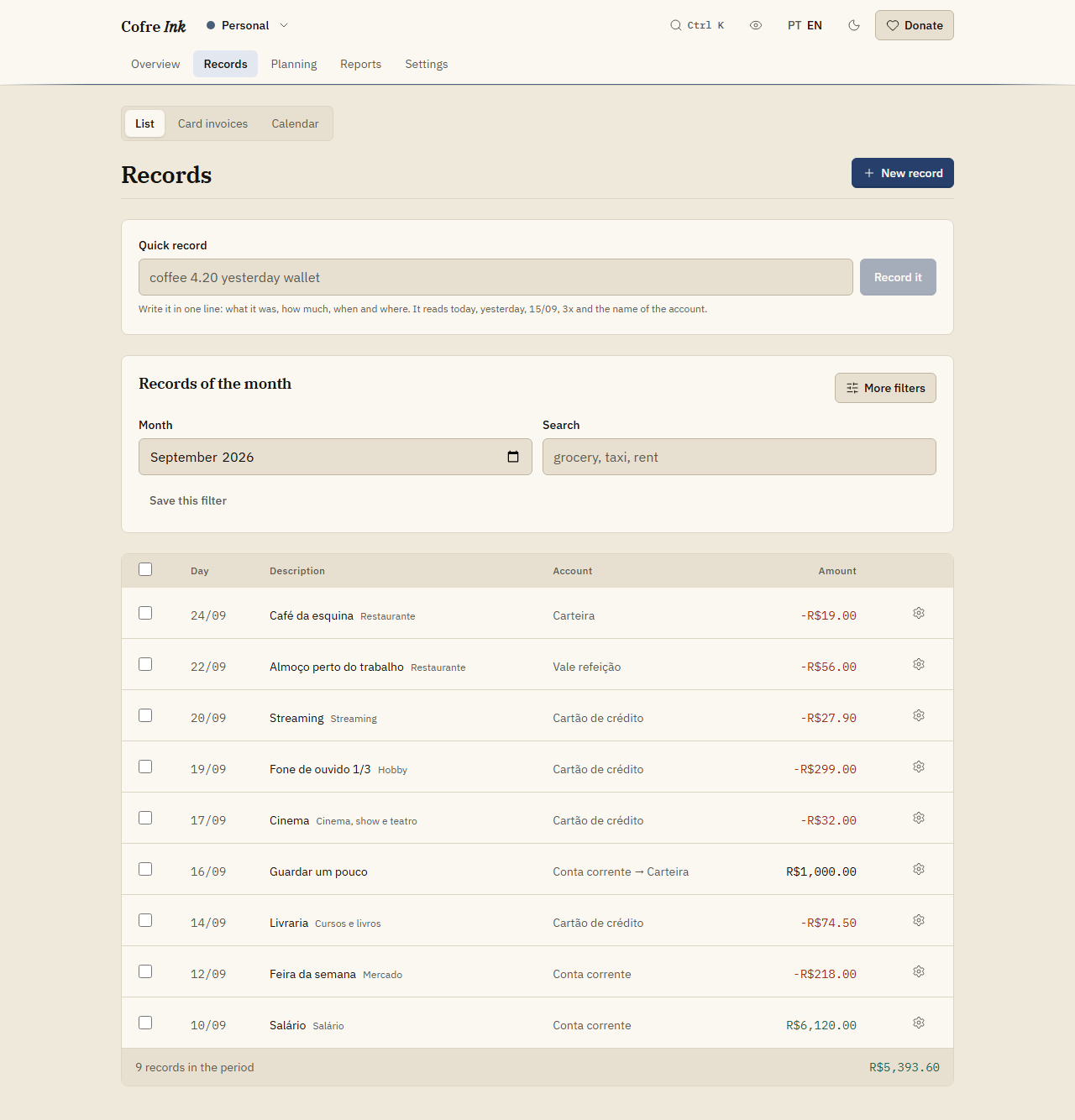
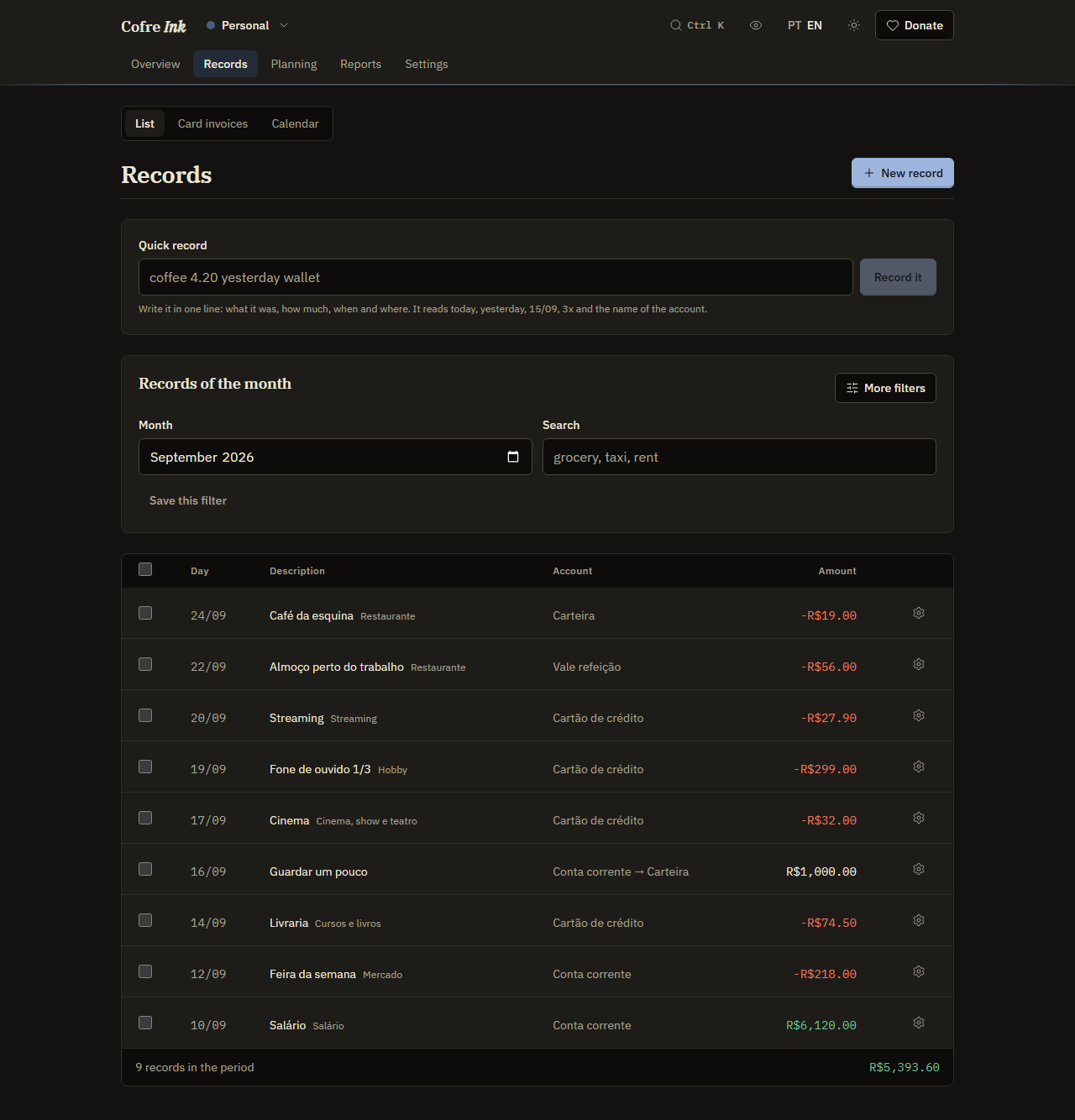
Section titled “Where to find it”Open Records, then List. The screen opens on the current month. At the top are the New record button (see Writing a record) and the quick entry line (see Quick entry). Below them is the panel Records of the month.
 (opens the picture at full size)
 (opens the picture at full size)
Find a record
Section titled “Find a record”- In Month, pick the month.
- In Search, type a piece of the description, such as
bakery. The list narrows as you type. - For more, press More filters and choose Kind, State (Everything, Happened or Coming), Account, Card (shown only when the space has cards) or Category, which includes No category.
Choosing a category that has others inside it also brings the records of those. The button then says how many filters are on, such as 1 filter on, and Clear appears beside it. Clear resets the filters behind the button; the month and the search stay.
Each row shows the day, the description with its category, the account and the amount. A record that has not happened yet says Coming, and one checked against the bank says checked. At the bottom you see how many records are listed and their sum, with transfers left out of the sum.
Keep a filter you use often
Section titled “Keep a filter you use often”- Set the month, the search and the filters you want.
- Press Save this filter, write a Name and press Save.
The filter becomes a button under the filters. Pressing it brings back the same month, search and filters, and the one in force is drawn darker. To delete it, press the small cross beside its name. Only you see the filters you save.
Change one record
Section titled “Change one record”Press the gear button at the end of the row. The menu offers:
- Edit, which opens the record form.
- Mark as paid, for a record that has not happened yet. From then on the balance counts it.
- Always sort like this, for a record with a category, which writes a rule (see Rules that sort).
- Divide with the house, in a shared space and for an expense only (see Splitting and settling up).
- Checked against the bank, to say the record matches your statement. It then shows checked and cannot be changed or deleted until you choose Undo the check.
- Delete, and for a purchase in instalments also Delete every installment.
Change several records at once
Section titled “Change several records at once”- Tick the box at the start of each row, or the box in the header to select everything on screen.
- A bar shows how many are selected, such as 2 selected.
- Press Mark as paid, pick an account in Move to, pick a category in Category, or press Delete.
- Clear the selection lets go of them without changing anything.
The change applies to every selected record or to none. If one of them was checked against the bank, nothing changes and the screen says why.
Good to know
Section titled “Good to know”- The list shows at most 200 records at a time and has no further pages. If a month has more, narrow it with a search or a filter. With the Month field emptied, it shows the 200 most recent records of all time.
- Search reads the description only, not the note, and accents count:
cafedoes not findCafé. - Delete, Move to and Category act as soon as you choose them, with no confirmation and no undo.
- A saved filter keeps the month it was saved in. A filter saved in September opens September again.
- In a shared space, what you can change depends on your role, and a Logger sees only the records they wrote (see Members and invitations).
- All of this works the same in the browser and on a server of your own.
Next: Writing a record, Quick entry and Card invoices.