Changing where the data lives
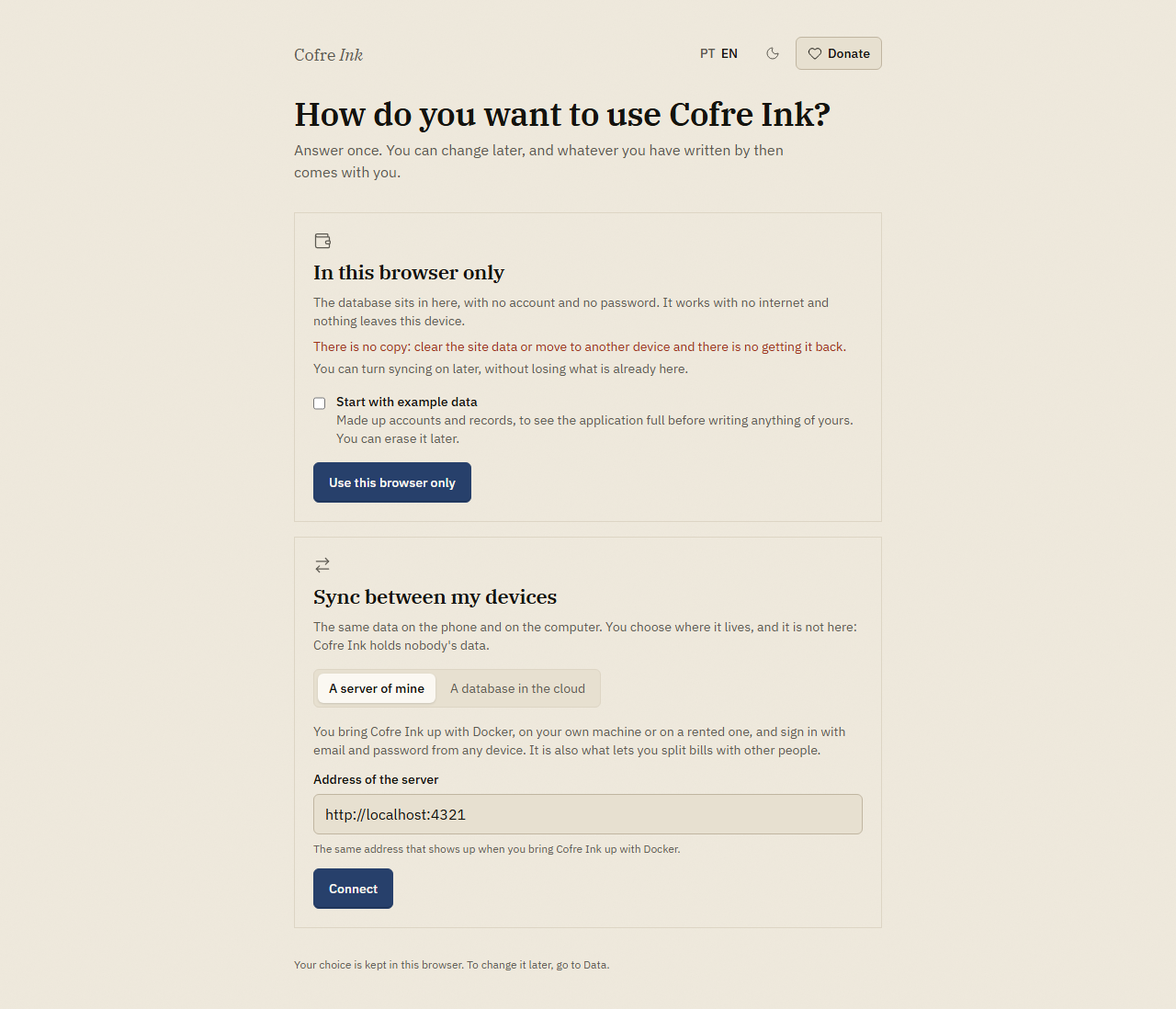
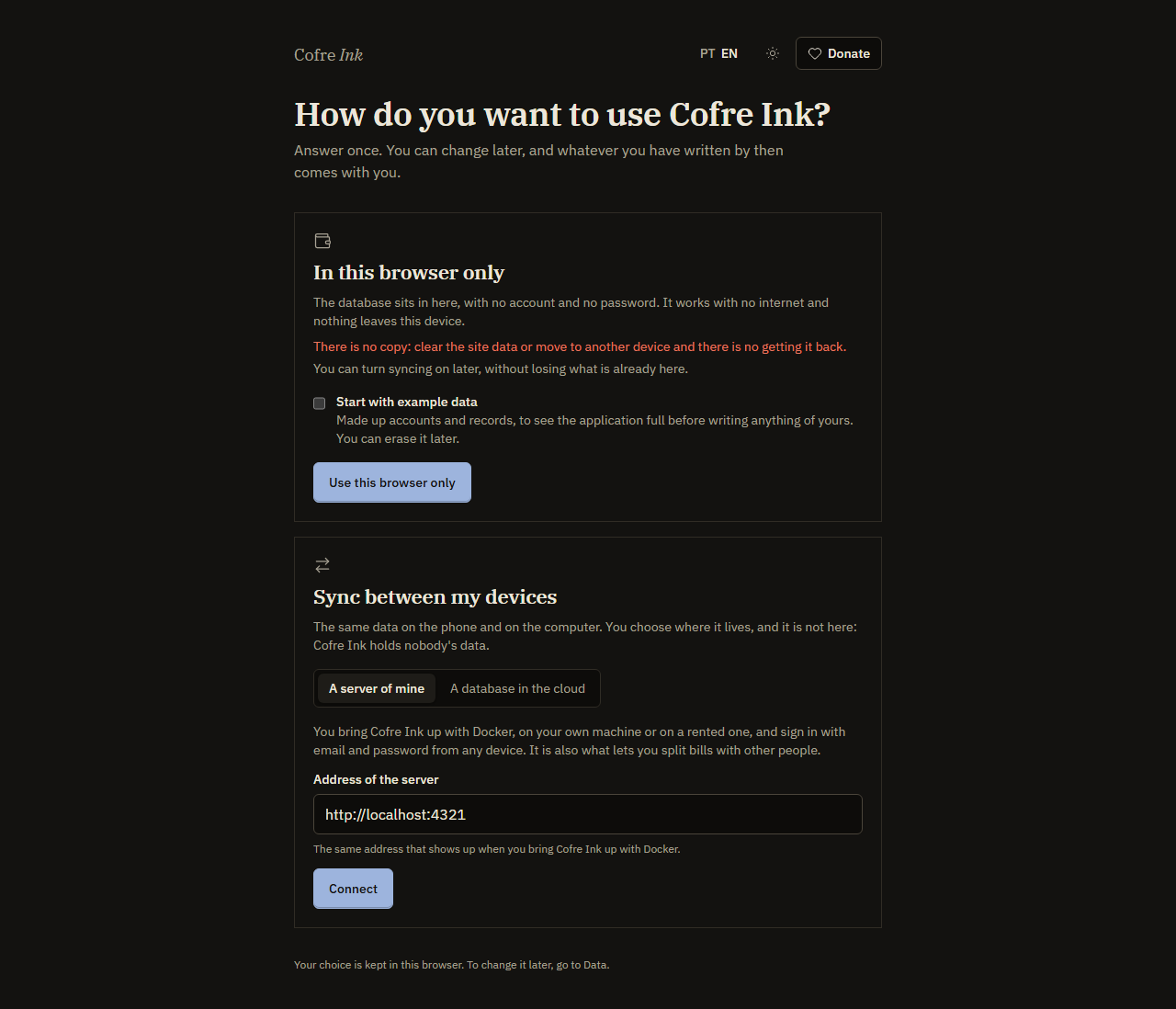
The first time you open Cofre Ink you choose where the data lives. You can change that later, but what you have written does not travel on its own: moving your records from a browser to a server of yours goes through a backup file.
Where to find it
Section titled “Where to find it”Go to Settings, Data. Under Where your data is, the button Change where the data lives takes you back to the first question, How do you want to use Cofre Ink?. In browser mode the screen adds that what is in this browser stays in it and does not travel on its own.
Move from browser mode to your server
Section titled “Move from browser mode to your server”You need a Cofre Ink server running. See Install with Docker.
- At the address where your data is, go to Settings, Data. With a single space, press Save in Save a copy. With more than one, open Take the data to another program and press Save under Backup of every space: one file carries all of them. Keep the file.
- Open the address of your server in the browser, such as
http://localhost:4321when it runs on this computer with the standard settings. The first screen asks How do you want to use Cofre Ink?. - Under Sync between my devices, press See both ways. A server of mine is already chosen.
- Check Address of the server. It has to be the address of your server with
http://orhttps://at the start, because an address typed without it is read ashttps://. Press Connect. - On a new server the screen says Create your access. Fill What you are called, Email and Password (ten characters at least) and press Create the account and sign in. On a server that already has accounts, sign in, or press I do not have an account yet.
- Go to Settings, Data. In Bring it back, press Choose a file, pick the file from step 1 and press Bring it back.
 (opens the picture at full size)
 (opens the picture at full size)
Screenshot pending
The sign in screen of a server with no account yet: Create your access and This server has nobody on it yet
src/assets/shots/en/signInFirst.light.pngThe Restored message counts what arrived. The personal space in the file joins the personal space of your account, which a new account has empty. Each shared space arrives as a space of yours, with you as its Owner. Who was in it does not travel: to have other people in it again, invite them as Members and invitations explains.
What changing does not do
Section titled “What changing does not do”- It copies nothing. What is in this browser stays in it, and your server starts empty until you bring the file back.
- It erases nothing either. The records in this browser are still there after the move. Keep the file, and check your records on the server before you erase anything (see Erasing data).
- The hint under the button suggests turning syncing on to take the data with you. Sync does not carry the personal space into a server account, which always has one of its own. The backup carries it, and the shared spaces as well.
Good to know
Section titled “Good to know”- Rows that name a person the server does not know, such as the shares of a split between two profiles of the same browser, are left out and counted in the Restored message.
- This route, saving in browser mode and bringing the file back on a server, has not yet been tested end to end as one flow. Look at what arrived before you rely on it.
- In server mode, Change where the data lives also takes you back to the first question. Your records stay on the server.
Related pages: Backup and restore, A copy elsewhere, and a second device, Where your data lives.