Categories and priorities
Categories sort what you spend and what comes in, in a list two levels deep. Every spending category also carries a priority, which says how much that spending was needed.
Where to find it
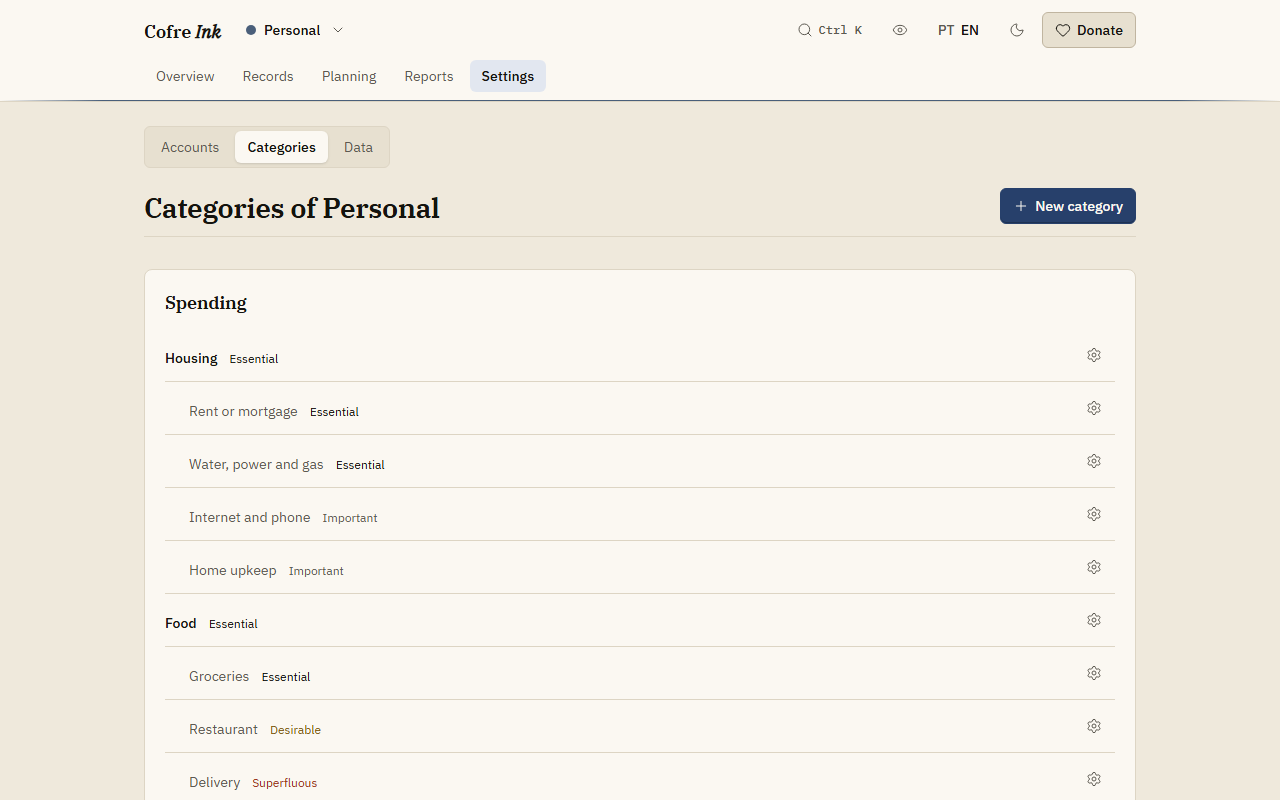
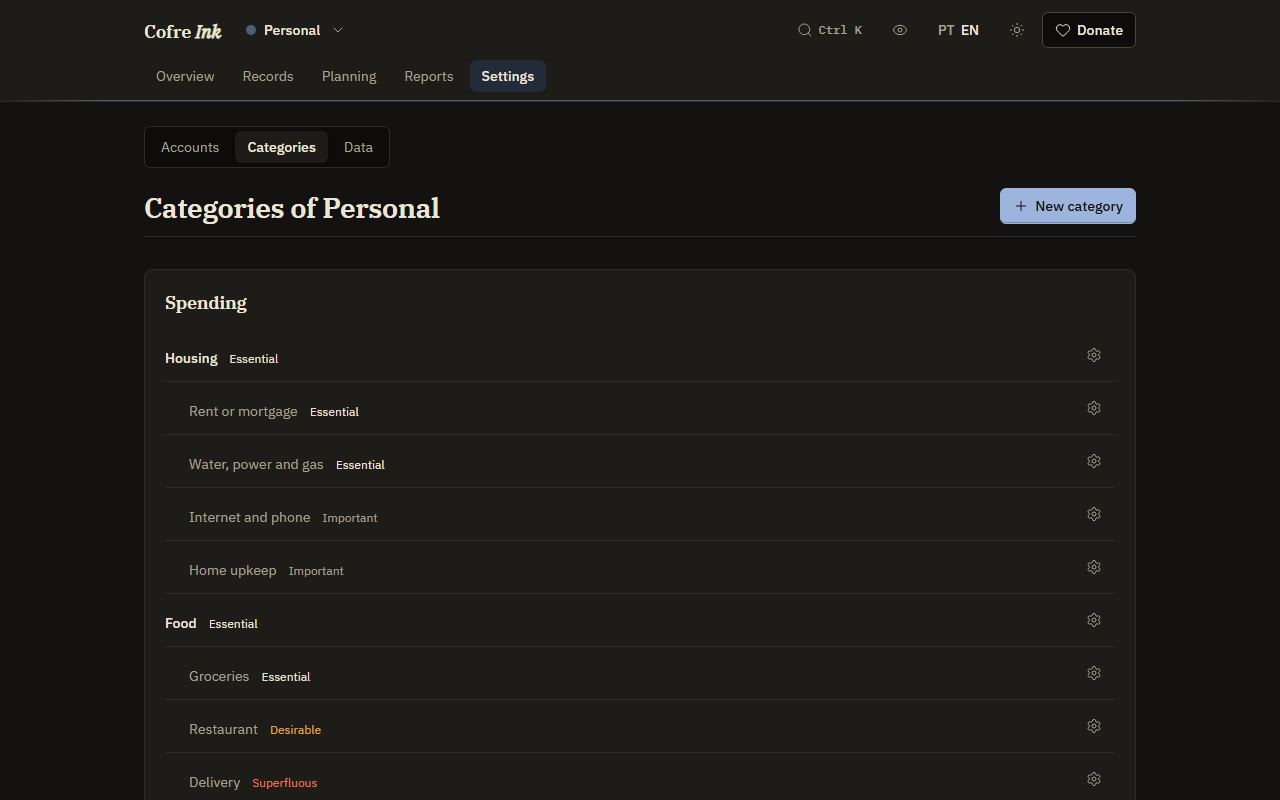
Section titled “Where to find it”Open Settings, then Categories. The screen is headed Categories of and the name of the space, with a Spending panel and an Income panel. The categories that sit inside another one are indented under it, and each spending line shows its priority. Further down is the panel Rules that sort on their own (Rules that sort).
 (opens the picture at full size)
 (opens the picture at full size)
The starting set
Section titled “The starting set”A new space comes with a starting set: 12 spending categories with 31 more inside them, and 5 income categories, named in the language the interface is in at that moment. Food, for example, holds Groceries, Restaurant and Delivery. Rename, delete and add as many as you like.
The four priorities
Section titled “The four priorities”Essential, Important, Desirable and Superfluous, from the most needed to the least. In the starting set, Rent or mortgage and Groceries are essential, while Delivery and Streaming are superfluous.
The priority of a category is a starting point. A single record can disagree: on the record form, Priority starts on The one of the category and can be changed for that record alone. The budget can put a limit on a priority (Budget, save first and goals), and Reports show spending By priority.
Add a category
Section titled “Add a category”- Press New category.
- In Side, choose Spending or Income.
- Type the Name.
- For spending, choose the Priority. It starts on Important.
- In Sits inside, keep None, it stands on its own, or choose the category it belongs under.
- Press Save.
The category appears in its panel, under its parent if it has one, and can be picked on a record straight away.
Change a category
Section titled “Change a category”Press the gear button at the end of its line (Category actions) and choose Edit. You can change the name, the priority and where it sits. The side cannot change: a spending category stays a spending category.
Archive or delete a category
Section titled “Archive or delete a category”Both are in the same menu, and both act as soon as you choose them.
- Archive hides the category from this screen and from every list you pick from. There is no way to bring it back from the screens, so archive only what you will not use again. Archiving a category that has others inside it hides those too.
- Delete removes it, with no confirmation. The records that used it are left with no category. A category with others inside it cannot be deleted until those are moved or deleted.
Good to know
Section titled “Good to know”- Two levels at most. A category inside another takes none of its own, and a category that has others inside it cannot move under another one.
- Each space has its own categories.
- When you pick a category on a record, the ones inside it come indented under it. Filtering the list by a category includes the ones inside it (The list of records).
- In a shared space, the owner, administrators and editors change the categories; everybody in the space picks from them.
Next: Rules that sort, Writing a record and Budget, save first and goals.