Spaces
Every account, record, limit and goal in Cofre Ink belongs to a space. Your personal space is yours alone. A shared space holds the part of your money that you keep with other people, and it has members, roles and expense splitting.
Where to find it
Section titled “Where to find it”The button at the top of every screen shows the name of the space you are in, and the colour of that space shows in the top bar. Press that button to open the space menu. Manage spaces, in that menu, opens Your spaces, the list of every space you belong to. The command palette reaches it too: press Ctrl+K (Cmd+K on a Mac) and type spaces.
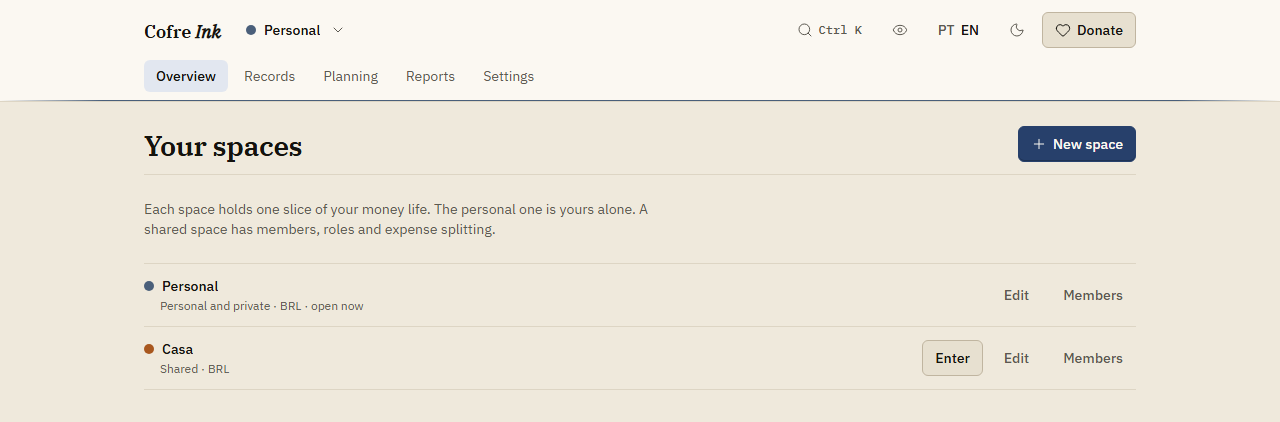
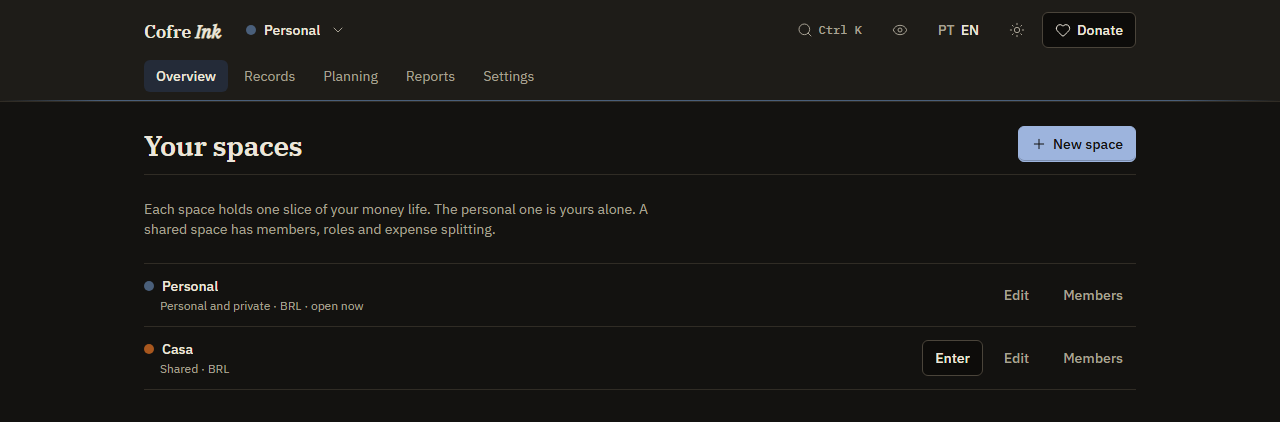
Each line of Your spaces shows the name of a space with its colour, then Personal and private or Shared, its currency, and open now on the space you are in. On the right are Edit and Members, and Enter on every space except the open one.
 (opens the picture at full size)
 (opens the picture at full size)
Move to another space
Section titled “Move to another space”- Press the button with the name of the space, at the top of the screen.
- Under Switch space, choose the space you want. A tick marks the one you are in.
Every screen now shows the figures of that space. Enter on a line of Your spaces does the same, and so does the command palette: press Ctrl+K, type part of the name of the space and press Enter.
Create a shared space
Section titled “Create a shared space”- Open the space menu and choose Manage spaces.
- Press New space.
- Fill in Name of the space, for example the name of the house.
- Pick a Colour if you like: Slate, Cedar, Clay, Plum, Sea or Rose. Clay comes chosen.
- Leave Currency on BRL.
- Press Save.
The new space becomes the one you are in, with you as its Owner. It comes with the starting categories, in the language on screen, and with no accounts: add them under Settings, Accounts (see Accounts). To bring other people in, see Members and invitations.
Rename a space or change its colour
Section titled “Rename a space or change its colour”Cofre Ink makes your personal space on the first screen without asking anything, and names it Personal (Pessoal if the interface was in Portuguese at that moment). To give it another name, or to correct any space:
- Open the space menu and choose Manage spaces.
- Press Edit on the line of the space.
- Change Name of the space or Colour.
- Press Save.
See every space together
Section titled “See every space together”When you belong to more than one space, the Overview and Reports show a Show switch with This space and Everything. Everything adds up every space you belong to.
Good to know
Section titled “Good to know”- You have one personal space, and only one. It never takes members. To split bills with someone, create a shared space.
- New space always makes a shared space.
- Currency only changes the currency the totals of a space are shown in. Nothing is converted, and accounts made on screen are always in reais, so keep it on BRL.
- Only the Owner and an Administrator of a space can edit it.
- Your spaces has no button to delete a space. Erasing one is Erase the data, in the Danger zone of Settings, Data, and only its Owner can do it (see Erasing data). To step out of a shared space that somebody else owns, use Leave this space on Members.
- A space counts its days on Brasília time (
America/Sao_Paulo), and there is no setting to change that. Today and the turn of the month follow Brasília, whatever the clock of your device says. - In browser mode, the default at app.cofre.ink, you can create a shared space and write in it, but nobody else can join it. Inviting needs a Cofre Ink server of your own, run with Docker (see Install with Docker).
Related pages: More than one person per device, Members and invitations, Splitting and settling up.