Accounts
An account is a place where money sits: a current account, savings, the cash in your wallet, a credit card, a meal voucher, an investment. You type how much is in it today, and from then on Cofre Ink works out the balance from what you record.
Where to find it
Section titled “Where to find it”Open Settings; it opens on Accounts. The table has the columns Name, Kind, Institution and Opening balance. Under it sits the Cards panel, described in Cards and vouchers.
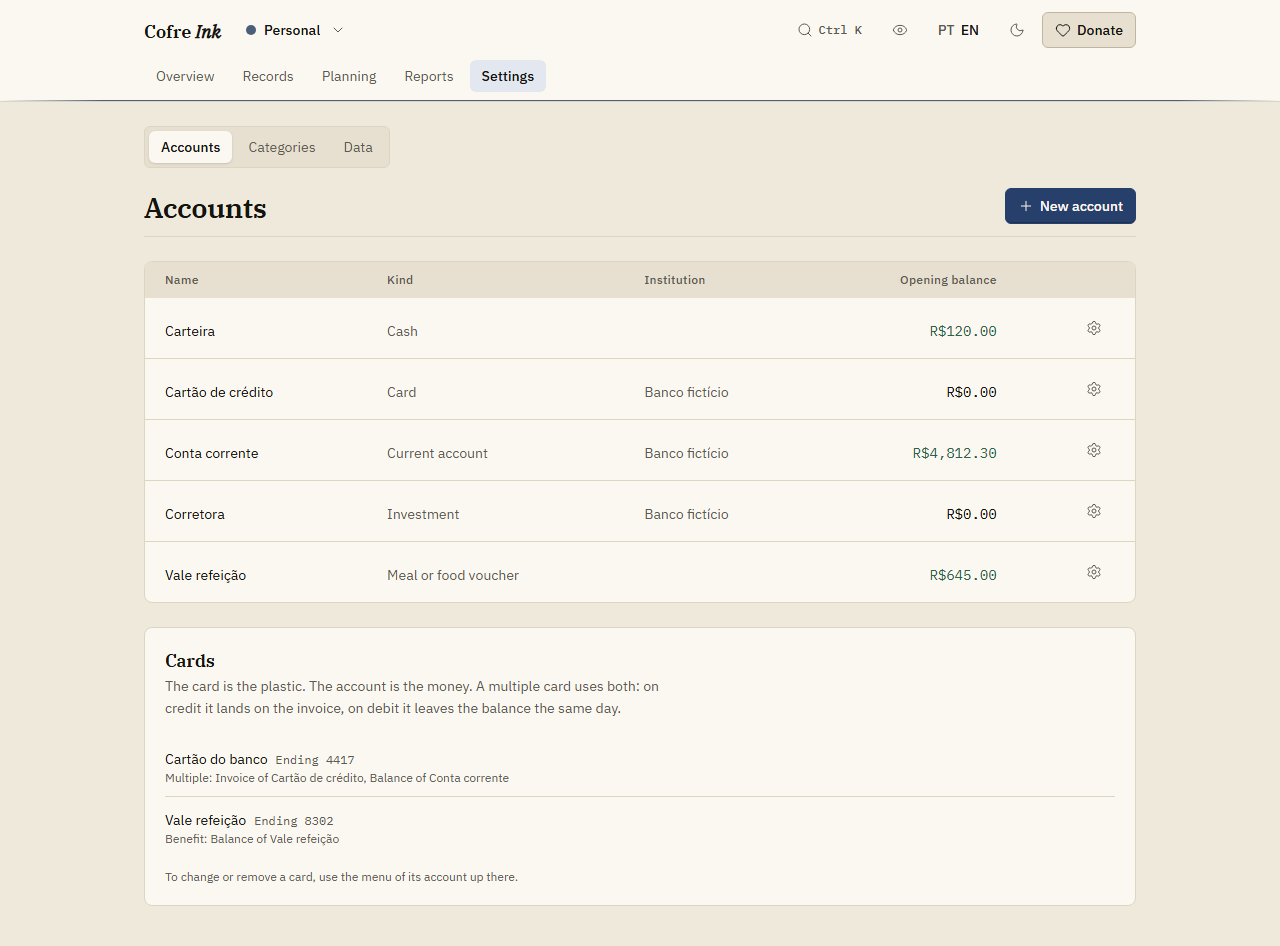 (opens the picture at full size)
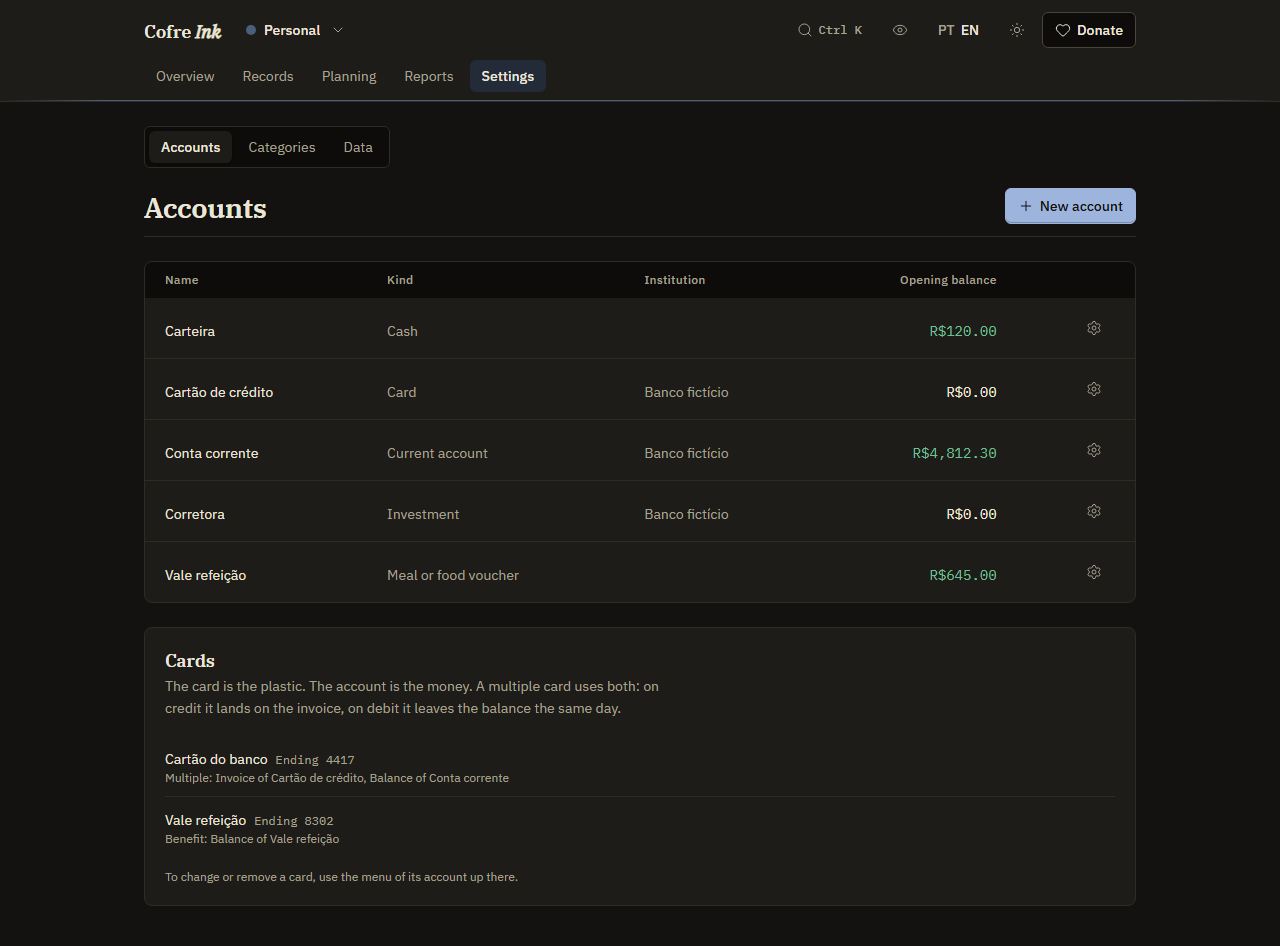 (opens the picture at full size)
Add an account
Section titled “Add an account”- Press New account. The dialog says which space the account goes into.
- Type a Name, such as the name of the bank or simply “Wallet”.
- Choose the Kind. It starts on Current account.
- Optionally type the Institution, the name of the bank.
- In Opening balance, type how much is in the account today, with a comma for the cents, as in
1.234,56. Left empty, it starts at zero. - Press Save.
The account appears in the table, and the balance at the top of the Overview now includes it. A good first account is the one your salary lands in; cards, cash and investments can come later.
Choose the kind
Section titled “Choose the kind”- Current account, Savings and Cash hold money you spend from.
- Card is for a credit card: the account holds its invoice, and the dialog also asks how the card works, the Closing day and the Due day. A debit card is added from the same place, without a new account. Both are explained in Cards and vouchers.
- Voucher or benefit is a meal, food, transport, culture or mobility voucher. The dialog asks Which benefit and makes the benefit card together with the account.
- Investment is money put away. The findings on the Overview and the Check up leave investment accounts out of the money you have on hand.
See how much each account holds
Section titled “See how much each account holds”The table shows the opening balance, the figure you typed, not what the account holds now. Today’s balances are on the Overview: the headline You have this much in, followed by the name of the space, adds up every open account, and the panel Where the money is lists each one.
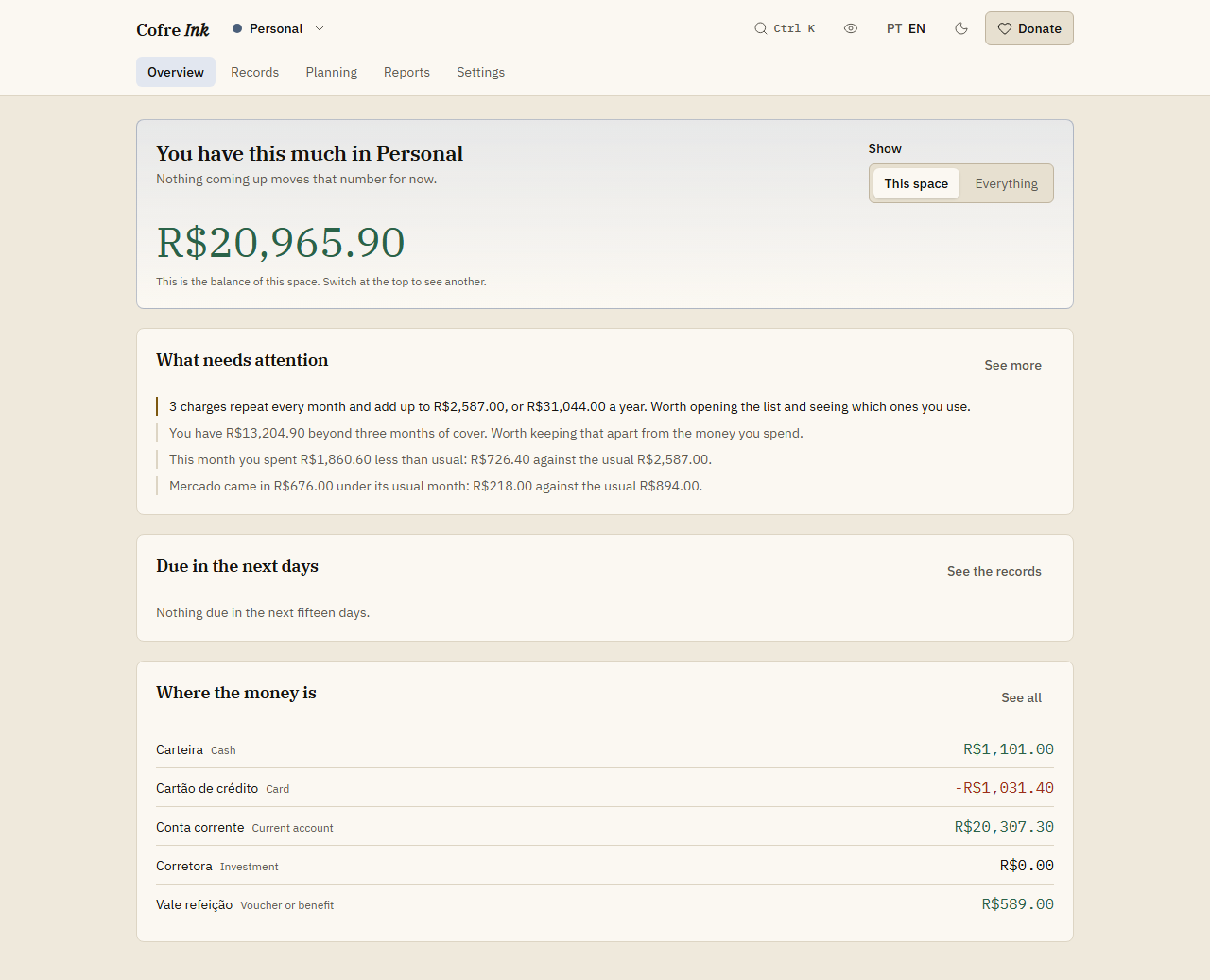 (opens the picture at full size)
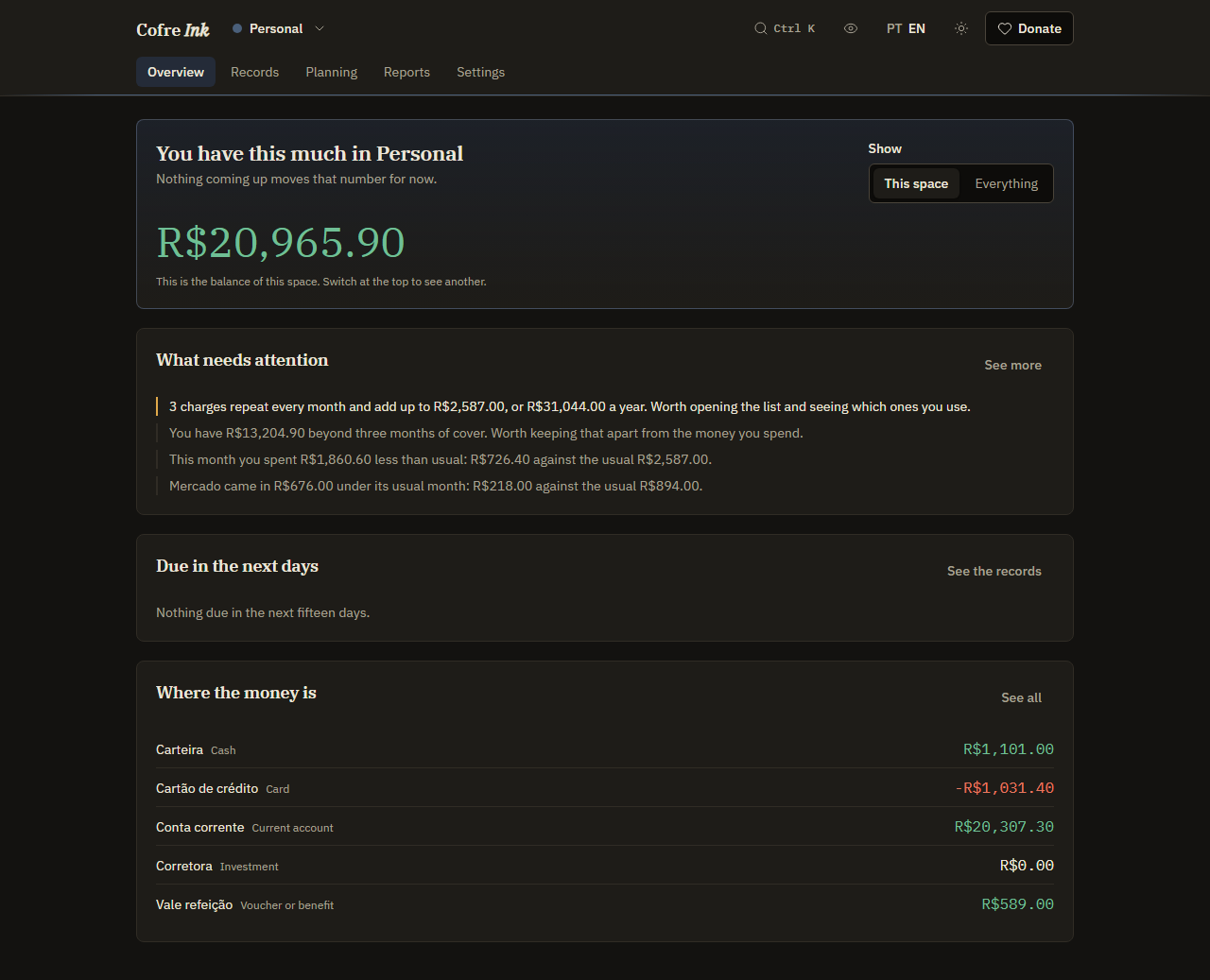 (opens the picture at full size)
A balance is the opening balance plus every record that has happened; a transfer leaves one account and arrives in the other. A record marked Has not happened yet stays out of it until you mark it as paid. Until then it is counted only in the line After what is coming: under the headline.
Put away an account you no longer use
Section titled “Put away an account you no longer use”- Press the gear button at the end of the account’s row (Account actions).
- Choose Archive.
The row is struck through, the account leaves the Overview, and it is no longer offered when you write a record. Its records stay as they are. To use it again, open the same menu and choose Bring back.
Delete an account
Section titled “Delete an account”Open the same menu and choose Delete. It acts at once, with no confirmation, and it also removes every card that reaches the account. For an account that already has records, Archive is the safer choice.
Good to know
Section titled “Good to know”- An account cannot be edited once it is saved. Its menu offers Archive, Delete and, for each card that reaches it, Edit card followed by the card’s name. If the name, the kind, the opening balance or a card’s closing day came out wrong, delete the account and add it again before you write records to it.
- Every account is in Brazilian reais. The dialog has no currency field, and nothing is converted.
- An account belongs to the space that is open when you add it. To add one to another space, switch to that space first (Spaces).
- An archived account refuses new records until you bring it back.
- In a shared space, the owner, administrators and editors add and archive accounts; only the owner and administrators delete them (Members and invitations).
- All of this works the same in the browser and on a server of your own.
Next: Cards and vouchers, Categories and priorities and Writing a record.