Importing a statement
Instead of typing a month of purchases, read the file your bank gives you. Cofre Ink shows what it understood, line by line, and writes only the lines you keep, when you press the button. The file is one you download from your bank yourself: Cofre Ink does not connect to any bank.
Where to find it
Section titled “Where to find it”Open Settings, then Data. In the panel Every day, next to Import a statement, press Open the import. You can also press Ctrl K (Cmd K on a Mac) and choose Import a statement.
You need at least one account to import into. Without one, the screen says You have no account yet (see Accounts).
 (opens the picture at full size)
 (opens the picture at full size)
What it can read
Section titled “What it can read”- CSV and XLSX, with the columns shown for you to check.
- OFX (also
.qfx) and QIF. - JSON: a list of records, or an object whose
transactionsholds that list. Each record hashappenedOnasYYYY-MM-DDandamountas a whole number of cents, negative for money out, and optionallydescription,notesandexternalId. - PDF: a card invoice, a bank statement or a receipt. Cofre Ink reads the text inside the PDF with a reader written for the project.
There is no text recognition for pictures. A PDF that is a scan or a photograph holds no text, and the screen says so and suggests asking the bank for the original file, or using the CSV, the OFX or the spreadsheet.
The copy you make with Save a copy on the Data screen is not read here: it comes back with Bring it back on the same screen (see Backup and restore).
Import a file
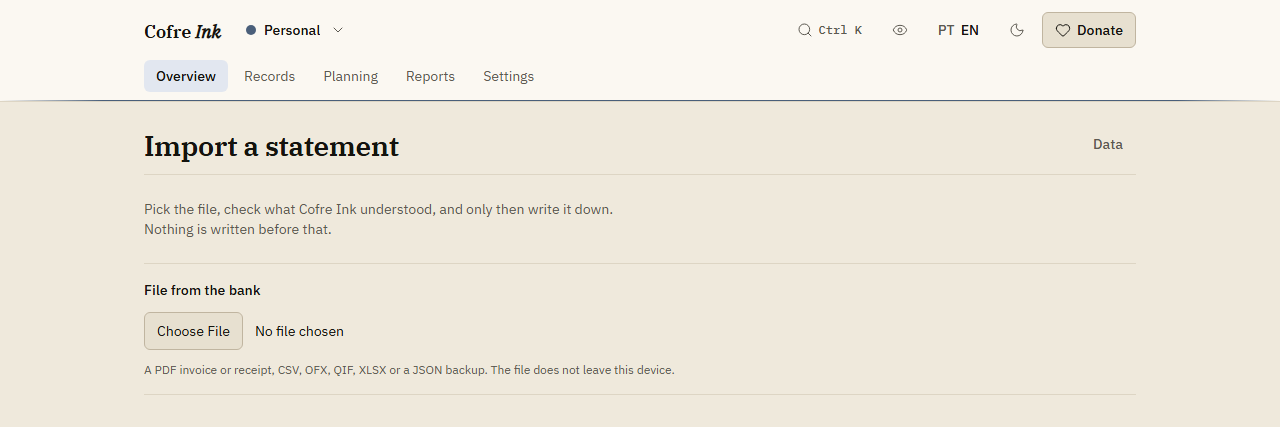
Section titled “Import a file”- Under File from the bank, choose the file. It is read inside your browser, and nothing is written yet.
- For a PDF, a box says what the document looks like, such as This looks like a card invoice, with the bank, the period, the due date and the total the document itself states. Compare that total with the lines below.
- Check Into which account. The whole file goes into one account. Cofre Ink often picks it and says why, for example from the last four digits of a card or from the name of the bank. Change it if it is wrong.
- Read the line beside it: how many records were read, how many lines were left out, and how many arrive already sorted by your rules.
- For CSV and XLSX, check The columns. Each column has a choice of Date, Description, Amount, Money out, Money in, Notes, Identifier, Category or Ignore. Correct any column read as the wrong thing, and the list follows.
- If the file has an Amount column, check Positive amounts in this file. Are money leaving is for a card invoice, where every line is a purchase. Carry the sign the bank wrote is for a statement with money going both ways. When a file with at least three amounts has none that is negative, Cofre Ink chooses Are money leaving and says so.
- In the table, untick any line you do not want.
- Press the button that says how many will be written, such as Write 12 records. The screen then says how many were written, and See the records takes you to the list.
Lines already there, and lines in doubt
Section titled “Lines already there, and lines in doubt”- A box such as 2 look like they are already here counts the lines that look like records already in that account. When the bank gave the same identifier (an OFX file does), the line says The same entry and comes unticked and locked. When only the day, the amount and the start of the description match, it says Looks the same and stays ticked for you to decide.
- A PDF does not come in columns, so some of its lines are read by deduction. A box such as 3 lines I am not sure I understood counts them, and each one shows Check this one: with the original line of the document under it, so you can compare.
- Lines that could not be read are listed under a line such as See the 3 lines that were left out, each with the reason, such as no date or no amount.
When nothing is in doubt and nothing repeats, a box that starts with Everything is ready: says so.
What gets written
Section titled “What gets written”- Every line becomes a record that has happened: money in as an income, money out as an expense. Nothing is written as a transfer or as planned.
- All the lines are written together, or none are, into the space that is open.
- Categories come from your rules. A Category column in the file is not written.
- Lines read into a card account land on the right card invoices. When Cofre Ink picked the account from the last four digits of one of your cards (it says Recognised by the four digits of the card.) and you keep that account, that card goes on each record.
Good to know
Section titled “Good to know”- The reader has not yet been tried on real bank statements. It was built and tested with files written for the purpose, so expect to correct the columns or the sign the first time you import from a bank.
- After a successful import, this browser remembers the columns and the sign used for a file with the same columns, and the account used for a file of the same shape or from the same bank, and starts from them next time. This memory stays in the browser and does not travel with your data.
- When a PDF names its bank, the name labels the document and helps pick the account. It is not a list of supported banks, and no bank has a reader of its own yet.
- To help the account guess, fill in Institution when you create an account, and Last four digits for a card.
- The file is read on your device. With a server of your own, only the lines you keep are sent to it, and one import holds at most 3000 records there.
- The largest file accepted is 25 MB.
- In a shared space, somebody with the Viewer role cannot import.
Next: Rules that sort, The list of records and Card invoices.