Cards and vouchers
In Cofre Ink the card is the plastic and the account is the money. Each card says which account it reaches: the invoice it charges, the balance it spends, or both. When you pick the card on a record, the record goes to the right account by itself.
Where to find it
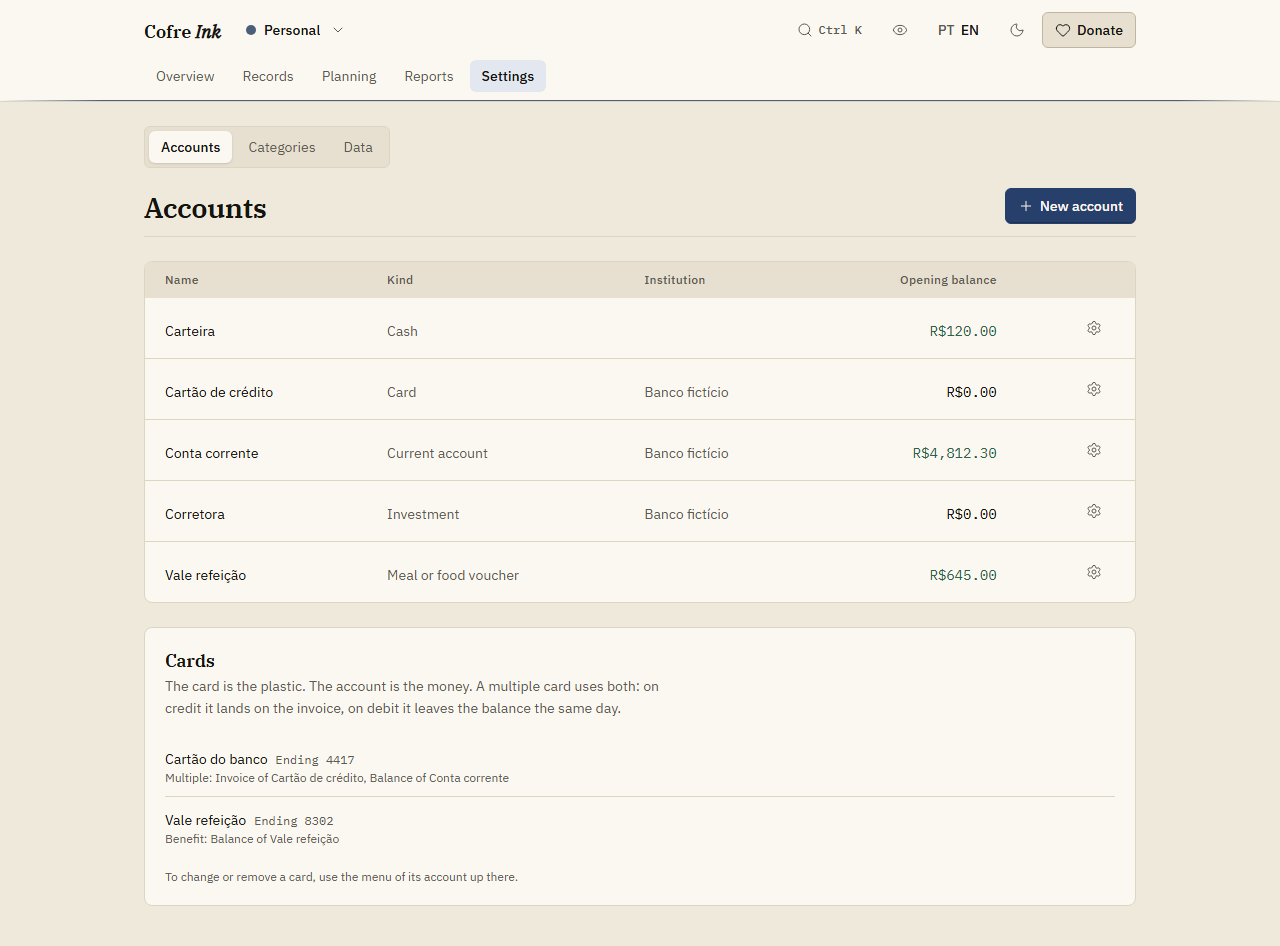
Section titled “Where to find it”Open Settings, then Accounts. The Cards panel sits under the table of accounts. Each line shows the card’s name, its last digits (Ending, then the digits), its kind and what it uses: Invoice of a card account, Balance of another account, or both.
There is no separate button to add a card. Cards are made in the New account dialog, together with the account they belong to.
 (opens the picture at full size)
 (opens the picture at full size)
The kinds you can add
Section titled “The kinds you can add”- Credit charges the invoice of a card account.
- Debit spends the balance of an account you already have. The money leaves the same day.
- Multiple does both. On each purchase you say whether it went on credit or on debit.
- Benefit spends a voucher account: VA and VR (the Brazilian meal and food vouchers, kept as one pot), VT (the transport voucher), a culture voucher or mobility.
Add a credit card
Section titled “Add a credit card”- In Accounts, press New account.
- Type the Name of the card, for example the name of the bank.
- Set Kind to Card. The switch How it works appears; keep Credit.
- Choose the Closing day and the Due day, each from 1 to 31. They start on 3 and 10. A purchase on the closing day or after goes on the next invoice.
- Optionally type the Institution and the Last four digits. Opening balance can stay empty.
- Press Save.
This makes two things with the same name: a card account, which holds the invoice, and the card itself, which shows in the Cards panel.
Add a multiple card
Section titled “Add a multiple card”A multiple card needs the account it spends on debit, so add that account first, usually your current account.
- Press New account, type the Name and set Kind to Card.
- In How it works, choose Multiple. The field Balance it spends appears, already set to one of your accounts, a current account when there is one; change it if needed.
- Choose the Closing day and the Due day, and optionally the Last four digits.
- Press Save.
The panel then shows one card that uses both: the invoice of the new card account and the balance of the account you chose.
Add a debit card
Section titled “Add a debit card”- Press New account, type the name of the card and set Kind to Card.
- In How it works, choose Debit. The dialog explains that a debit card spends an account that already exists, so only the card is added.
- In Balance it spends, pick that account.
- Optionally type the Last four digits, then press Save.
If there is no account to spend from yet, the dialog asks you to create it first. If the account you pick is a voucher, the card is saved as a benefit card.
Add a meal, food or transport voucher
Section titled “Add a meal, food or transport voucher”- Press New account, type a Name, such as the name of the voucher, and set Kind to Voucher or benefit.
- In Which benefit, choose Meal or food voucher, Transport voucher (VT), Culture voucher or Mobility.
- In Opening balance, type what is on the voucher today, and optionally the Last four digits.
- Press Save.
This makes a voucher account and a benefit card with the same name. In the table, the Kind column shows the benefit.
Pay with a card on a record
Section titled “Pay with a card on a record”Once the space has a card, the New record dialog shows a Card field. Choosing a card fills in the Account for you. A multiple card is offered twice, with (Credit) and (Debit) after its name: credit puts the purchase on the invoice, debit takes it from the balance the same day. If you then pick another account by hand, a card that cannot reach it is dropped. More in Writing a record.
Correct or remove a card
Section titled “Correct or remove a card”- In the table of accounts, press the gear button at the end of the row of the account the card reaches (Account actions).
- Choose Edit card, followed by the card’s name.
- Correct the Name, the Invoice it charges, the Balance it spends or the Last four digits, and press Save.
The same dialog has Archive, which keeps the card but stops offering it on new records (Unarchive undoes it), and Remove card. Both act as soon as you press them. Removing a card keeps every record it was on; only the name of the card leaves them.
Good to know
Section titled “Good to know”- The kind of a card never changes. A card of another kind is another card: remove this one and add the new one.
- The closing day and the due day cannot be changed after the card account is saved, and there is no field for a credit limit.
- The last four digits are exactly four digits, or nothing. An import uses them to recognise the card in a statement (Importing a statement).
- One voucher account is one pot. If one card carries two benefits, add one voucher account for each.
- Apart from the Debit choice, every card comes with a new account. There is no direct way to add a second card to an invoice that already exists: Credit and Multiple always make a new card account.
- Deleting an account also removes every card that reaches it (Accounts).
- All of this works the same in the browser and on a server of your own.
Next: Card invoices, Writing a record and Accounts.