Backup and restore
A backup is one file with everything written in a space. Bringing it back joins the file with what is already there. Use it to keep a copy of your own, to have your records again after erasing them, or to carry them to a new place. It works the same way in browser mode and on a server of your own.
Where to find it
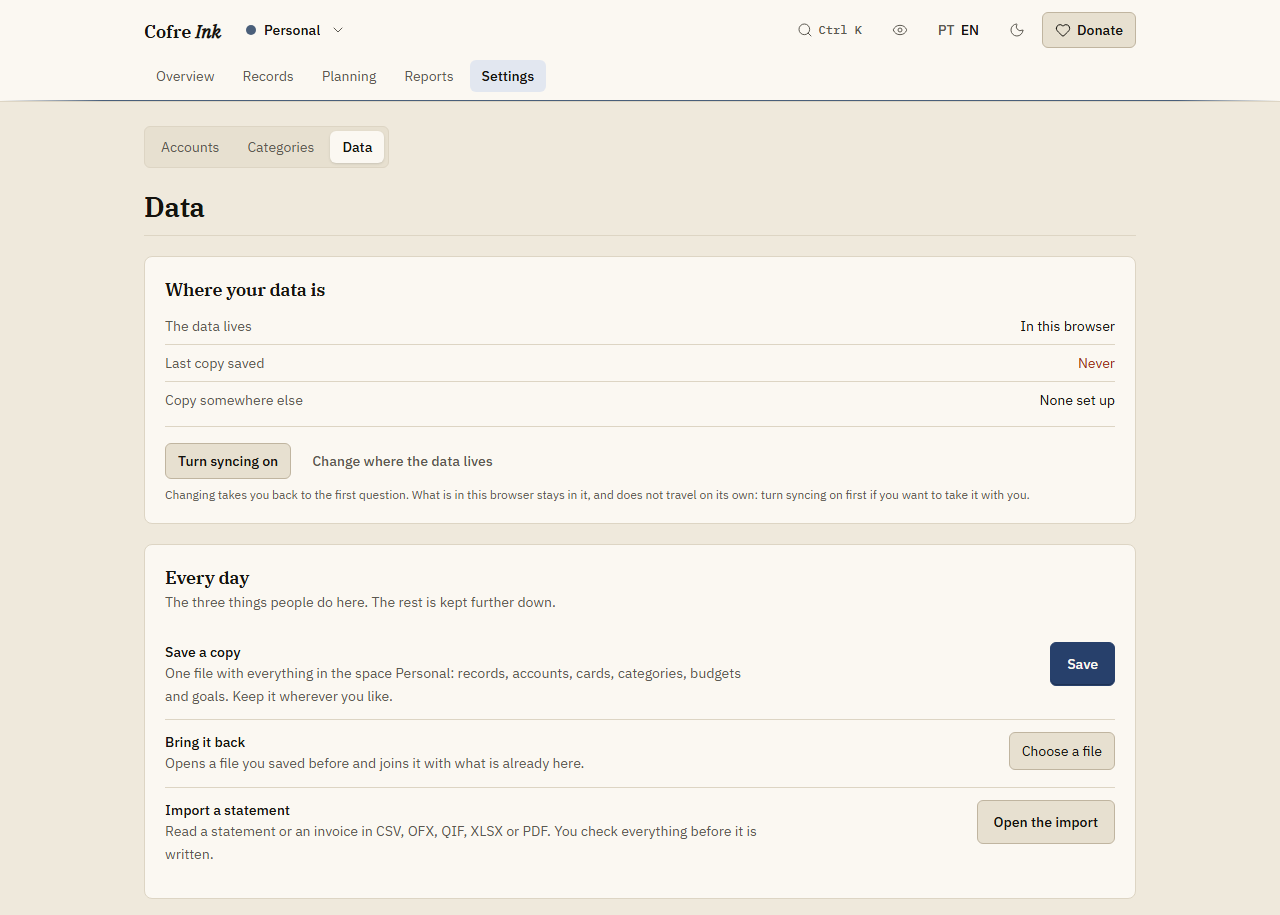
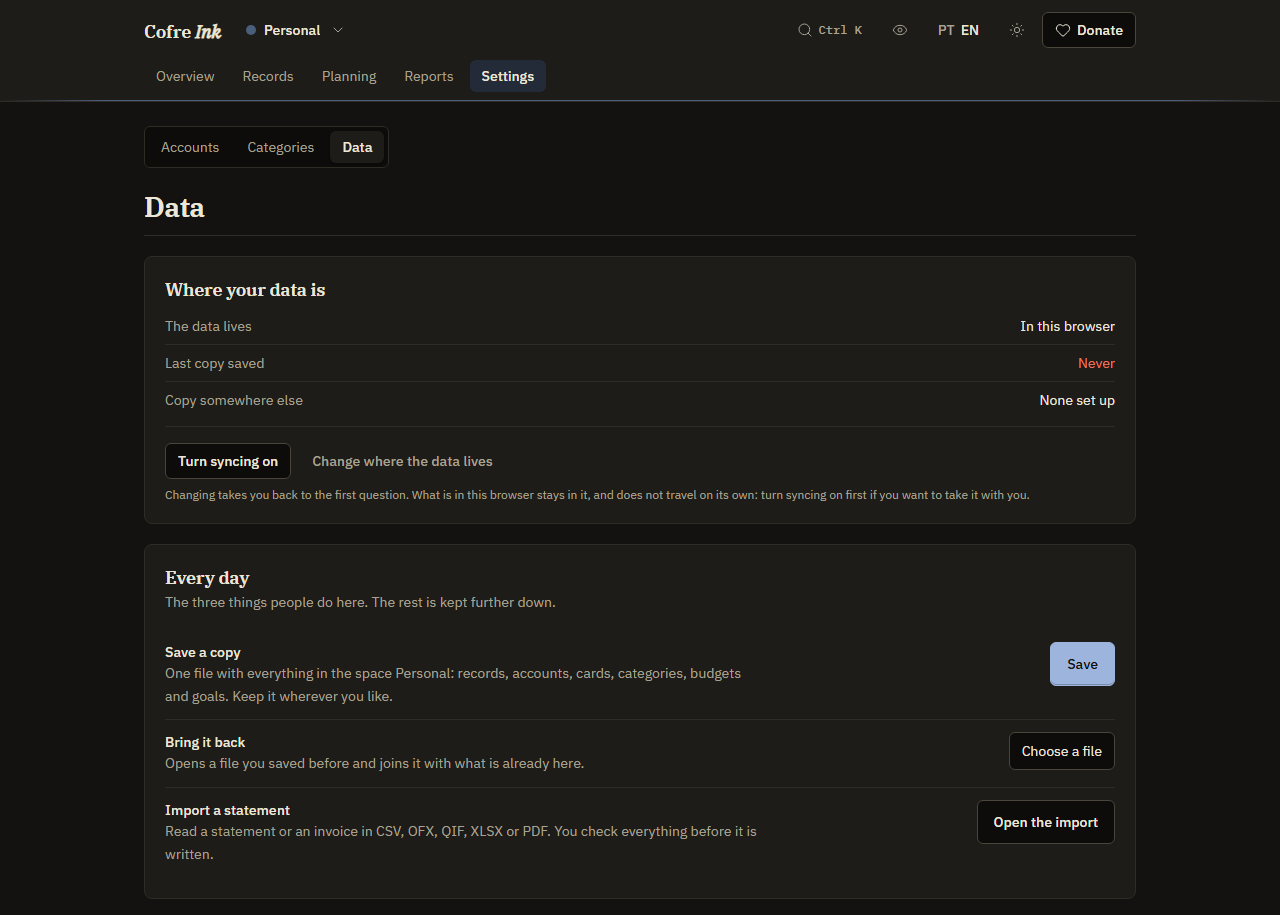
Section titled “Where to find it”Open Settings, then Data on the second row. The screen starts with Where your data is, which answers three questions: The data lives (In this browser or On your server), Last copy saved (a date, or Never) and Copy somewhere else. Below it, the Every day panel holds Save a copy and Bring it back.
 (opens the picture at full size)
 (opens the picture at full size)
Save a copy of a space
Section titled “Save a copy of a space”- Open the space you want to copy, from the space menu in the header (the button with the name of the space).
- Go to Settings, Data.
- In Save a copy, press Save.
Your browser downloads a file named like cofre_espaco_20260925.json, with the date of the day. It holds what the screen lists (records, accounts, cards, categories, budgets and goals) and the rest of the space as well, such as rules, recurring series, investments, splits and the payments that settle them. Last copy saved now shows the date and time.
Save every space at once
Section titled “Save every space at once”When you have more than one space, a second kind of backup appears.
- On the Data screen, open Take the data to another program.
- In Backup of every space, press Save.
The file is named like cofre_completo_20260925.json and holds, in one file, every space where you are Owner or Administrator.
Bring a copy back
Section titled “Bring a copy back”- Go to Settings, Data.
- In Bring it back, press Choose a file and pick a backup file.
- The dialog Bring the data back names the file and says what will happen: It only adds what is missing. Nothing already here is removed or replaced, and opening the same file twice duplicates nothing.
- Press Bring it back, or Cancel to stop.
A Restored message lists each space in the file with the number of rows written. It also counts the rows that were already here, and the rows left out because they named a person this database does not know, such as the share of a split with somebody who has no profile or account here.
Each space in the file lands in one of three places:
- A space that is already here, and yours, receives what it is missing.
- A personal space joins the personal space you already have, because nobody has two.
- Any other space arrives as a new space, and you become its Owner.
Good to know
Section titled “Good to know”- Nothing is saved on its own: there is no scheduled backup. Press Save whenever you want a fresh copy.
- Last copy saved is kept in this browser, one date per space, and only Save under Save a copy updates it. Backup of every space does not.
- The file is plain JSON text, with no password. Anybody who opens it can read your records, so keep it somewhere only you can reach.
- The file is handed straight to you by your browser. In server mode its contents come from your own server. It never passes through a server of the project.
- Bringing a copy back does not undo changes. A record that is still here keeps what it says now, even when the file holds an older version of it. A record you deleted in the app does not come back either: the app keeps a note of every deletion, and the restore counts that record as already here. Only what is missing comes back, such as what was erased in the danger zone.
- Saving a copy of a shared space needs the role Owner or Administrator in it.
- Files over 25 MB are refused.
- Import a statement, on the same screen, does not read a backup file. A backup always comes back through Bring it back.
- Erasing data does not reach the files you saved. See Erasing data.
Related pages: CSV and spreadsheets, A copy elsewhere, and a second device, Changing where the data lives.